Best External Drives for Remote Work: SSD vs HDD
Compare portable SSDs and external hard drives for remote-work backup and travel, with four current options plus encryption, formatting and 3-2-1 guidance.
What to know first
- Buy for your workflow and connection needs, not headline specifications.
- Reliability and warranty often matter more than a minor speed gain.
- Check compatibility before committing to an accessory.
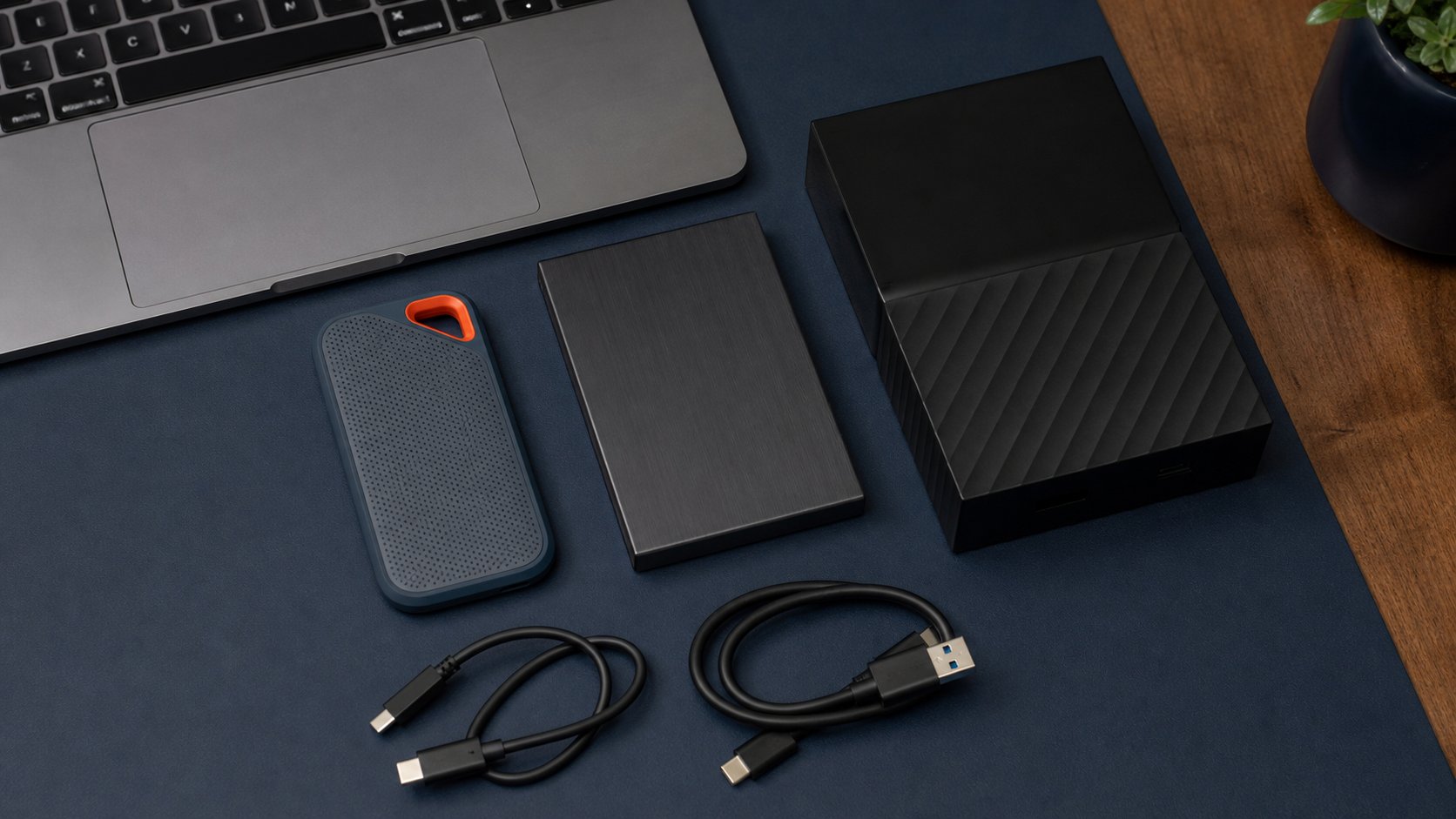
The best external drive for remote work depends on the job. Choose a portable SSD such as Samsung T7 Shield or Crucial X9 Pro for fast active files and travel. Choose a portable hard drive such as WD My Passport for more capacity per dollar. Use a larger desktop hard drive for scheduled local backup.
An external drive is not a backup when it contains the only copy. Follow employer data policy and maintain separate, tested copies.
Download the Remote Work Backup Inventory CSV
Quick picks
| Use case | Pick | Type |
|---|---|---|
| Rugged portable SSD | Samsung T7 Shield | USB 10Gbps SSD |
| Compact professional SSD | Crucial X9 Pro | USB 10Gbps SSD |
| Value portable backup | WD My Passport | Bus-powered HDD |
| USB-C high-capacity HDD | WD My Passport Ultra | Bus-powered HDD |
| Lowest cost per terabyte | Desktop external HDD | AC-powered HDD |
These picks are based on current published specifications and use cases, not a claim of original endurance testing.
SSD vs HDD
Portable SSD
Uses flash storage with no moving parts.
Advantages: fast, quiet, compact and more tolerant of movement.
Trade-offs: higher cost per terabyte and finite write endurance.
Portable HDD
Uses spinning magnetic platters and a moving head.
Advantages: more capacity per dollar and good for backups.
Trade-offs: slower, vulnerable to shock and less suitable for editing heavy media directly.
Desktop HDD
Uses an external power adapter and larger enclosure.
Advantages: highest capacities and value for a fixed backup station.
Trade-offs: not travel-friendly and dependent on mains power.
1. Samsung T7 Shield: best rugged portable SSD
T7 Shield uses USB 3.2 Gen 2 and advertises sequential reads up to 1,050 MB/s and writes up to 1,000 MB/s with a compatible host. It is offered up to 4TB and carries an IP65 dust and water-resistance rating.
Best for: travel, media files and moving large working sets.
Strengths: rubberized body, hardware-encryption support and both USB-C-to-C and USB-C-to-A cables in documented packages.
Trade-offs: rubber can collect dust, sustained speed depends on workload and host, and rugged ratings do not make data indestructible.
Review Samsung’s T7 Shield specifications. Prices and regional availability vary substantially.
2. Crucial X9 Pro: best compact professional SSD
Crucial X9 Pro supports up to 1,050 MB/s reads and writes over USB 3.2 Gen 2, capacities up to 4TB, IP55 resistance and 256-bit AES hardware-encryption features through supported software.
Best for: compact travel, photography and general fast external storage.
Strengths: small aluminum body, broad platform compatibility and five-year limited warranty.
Trade-offs: no 20Gbps interface and security features require correct setup and recovery planning.
See the official X9 Pro specifications.
3. WD My Passport: best value portable HDD
The current My Passport family offers bus-powered capacity up to 6TB in selected regions, USB 3.2 Gen 1 connectivity and software for device management and backup.
Best for: scheduled backups and large archives that travel occasionally.
Strengths: high capacity per dollar, no separate power brick and compact form.
Trade-offs: Micro-B connector on many models, mechanical shock sensitivity and much slower random access than an SSD.
Check the exact WD My Passport specifications because capacity, cable and regional software bundles differ.
4. WD My Passport Ultra: best USB-C portable HDD
My Passport Ultra adds a native USB-C connector and selected capacities up to 6TB, with USB 3.2 Gen 1 and a three-year limited warranty.
Best for: modern USB-C laptops where capacity matters more than SSD speed.
Strengths: USB-C connection, high portable capacity and encryption support.
Trade-offs: still a mechanical drive, so the USB-C plug does not make it SSD-fast.
Review the My Passport Ultra page for formatting and operating-system compatibility.
When a desktop drive is better
Choose an AC-powered desktop HDD when:
- It stays on one desk.
- Backups exceed portable-drive capacity.
- Cost per terabyte is the main constraint.
- Travel is unnecessary.
- A UPS or safe shutdown procedure exists.
Keep the power adapter ventilated and use only the specified replacement.
3-2-1 backup rule
CISA’s business backup guidance describes the 3-2-1 approach:
- Three copies of important data
- Two different storage media
- One copy off-site
For an individual remote worker, that might mean:
- Working copy on the computer
- Encrypted local external backup
- Approved cloud or off-site backup
A synchronized folder is not enough if deletion or ransomware immediately syncs too.
Employer data rules come first
Do not copy work files to a personal drive without authorization.
Organizations may require:
- Approved encrypted models
- Managed endpoint software
- Hardware encryption
- Asset inventory
- Geographic restrictions
- Retention schedules
- Secure disposal
- No removable media at all
A personal backup can become a security incident even when the intention is good.
Capacity planning
Add the current protected data size and expected growth.
For backups with version history, buy at least two to three times the active data size when software recommendations permit.
Examples:
- 300GB active files: 1TB may support versions.
- 1.2TB photo library: 4TB offers more history than 2TB.
- 4TB media archive: consider a larger desktop drive or NAS strategy.
Advertised capacity appears lower in some operating systems because manufacturers and software use different units and formatting consumes space.
Speed and interface labels
USB naming can be confusing.
- USB 3.2 Gen 1: 5Gbps signaling
- USB 3.2 Gen 2: 10Gbps
- USB 3.2 Gen 2×2: 20Gbps
- USB4 and Thunderbolt: configuration-dependent higher speeds
The slowest part—drive, cable, port, hub or protocol—sets performance.
A 10Gbps SSD connected through a 5Gbps hub cannot reach its full published speed.
Real-world speed
Manufacturer sequential results use specific systems and files. Performance changes with:
- Small vs large files
- Drive fullness
- Thermal limits
- Cache exhaustion
- Encryption
- File system
- Host controller
- Cable
- Background processes
For backups, reliability and automation often matter more than peak sequential speed.
Formatting
exFAT
Broad Windows and macOS compatibility, but fewer resilience and permissions features.
NTFS
Native Windows format; macOS may read but not write without additional support.
APFS
Modern Apple format for macOS workflows.
Platform backup format
Time Machine, Windows backup tools and enterprise applications may specify a format.
Reformatting erases the drive. Copy required data and verify the destination first.
Encryption
Encryption protects a lost drive only when configured correctly and backed by strong authentication.
Options include:
- Operating-system full-volume encryption
- Manufacturer hardware-encryption software
- Enterprise endpoint management
Keep recovery keys in an approved separate location. Losing the only key is data loss.
Encryption does not replace backup or malware protection.
Backup software
Choose software that supports:
- Automatic schedule
- Version history
- Encryption
- Integrity checks
- Notifications
- Exclusions
- Restore testing
- Retention controls
A green “completed” message is not proof until a restore works.
Test restores
Every quarter or according to policy:
- Select several representative files.
- Restore them to a temporary approved location.
- Open and validate them.
- Confirm dates and permissions.
- Document the result.
- Remove temporary copies securely.
For business systems, follow the formal disaster-recovery plan.
Safe handling
HDD
- Do not move while active.
- Protect from drops and vibration.
- Eject before disconnecting.
- Keep away from liquids.
- Do not stack under heavy equipment.
SSD
- Eject safely.
- Protect connectors.
- Avoid extreme heat.
- Do not rely on impact ratings as a guarantee.
- Keep firmware and security software current where approved.
No portable drive belongs loose in a bag with metal objects pressing on the connector.
Drive health and replacement
Watch for:
- Disconnections
- Slow reads
- File-system errors
- Clicking from an HDD
- SMART warnings
- Damaged cable or port
- Overheating
- Failed backup jobs
Stop writing to a failing drive. Professional data recovery can be expensive and is not guaranteed.
Replace a backup drive proactively based on condition, warranty, workload and organizational policy—not one universal age number.
Common mistakes
Keeping the only copy on the external drive. That is storage, not backup.
Buying capacity without a schedule. Manual backups are forgotten.
Using a personal drive for employer data. Follow policy.
Assuming USB-C means fast. Check protocol.
Losing encryption recovery keys. Store them separately.
Never testing a restore. Backup status can be misleading.
Carrying an active HDD. Mechanical drives dislike movement.
Leaving every backup connected. Ransomware can reach mounted drives.
Final recommendation
Choose Samsung T7 Shield for rugged fast travel, Crucial X9 Pro for a compact professional SSD, WD My Passport for value portable backup and My Passport Ultra when USB-C and high HDD capacity matter.
Use the drive inside a 3-2-1 plan, encrypt sensitive data, automate the schedule and test restores. The best external drive is not the fastest box—it is the copy you can successfully restore after the computer fails.