The Complete Ergonomic Home Office Guide
Use fit, support and movement to create a home workstation that reduces avoidable strain without chasing a single perfect posture.
What to know first
- Neutral, supported positions matter more than perfect posture.
- Movement throughout the day is part of the setup.
- Persistent pain deserves advice from a qualified clinician.
An ergonomic home office is not a pose you hold for eight hours. It is a workstation that supports you in several useful positions and makes movement easy. The best setup reduces unnecessary reach, pressure and visual strain while still fitting the work you actually do.
This guide offers a practical adjustment sequence. It is general education, not medical care. New, severe or persistent pain, numbness, weakness, vision changes or symptoms that interrupt sleep should be discussed with a qualified healthcare professional.
The three principles that matter most
Fit
Furniture and equipment should fit your body and task. A chair described as ergonomic can still be the wrong size. A large monitor can still create discomfort when it is too close. Adjustment range is useful only when it reaches the position you need.
Support
Support should reduce effort without locking you into one rigid position. Feet need a stable surface. The backrest should meet your back. Forearms may rest lightly during pauses, while the keyboard and mouse stay close enough to avoid repeated reaching.
Variation
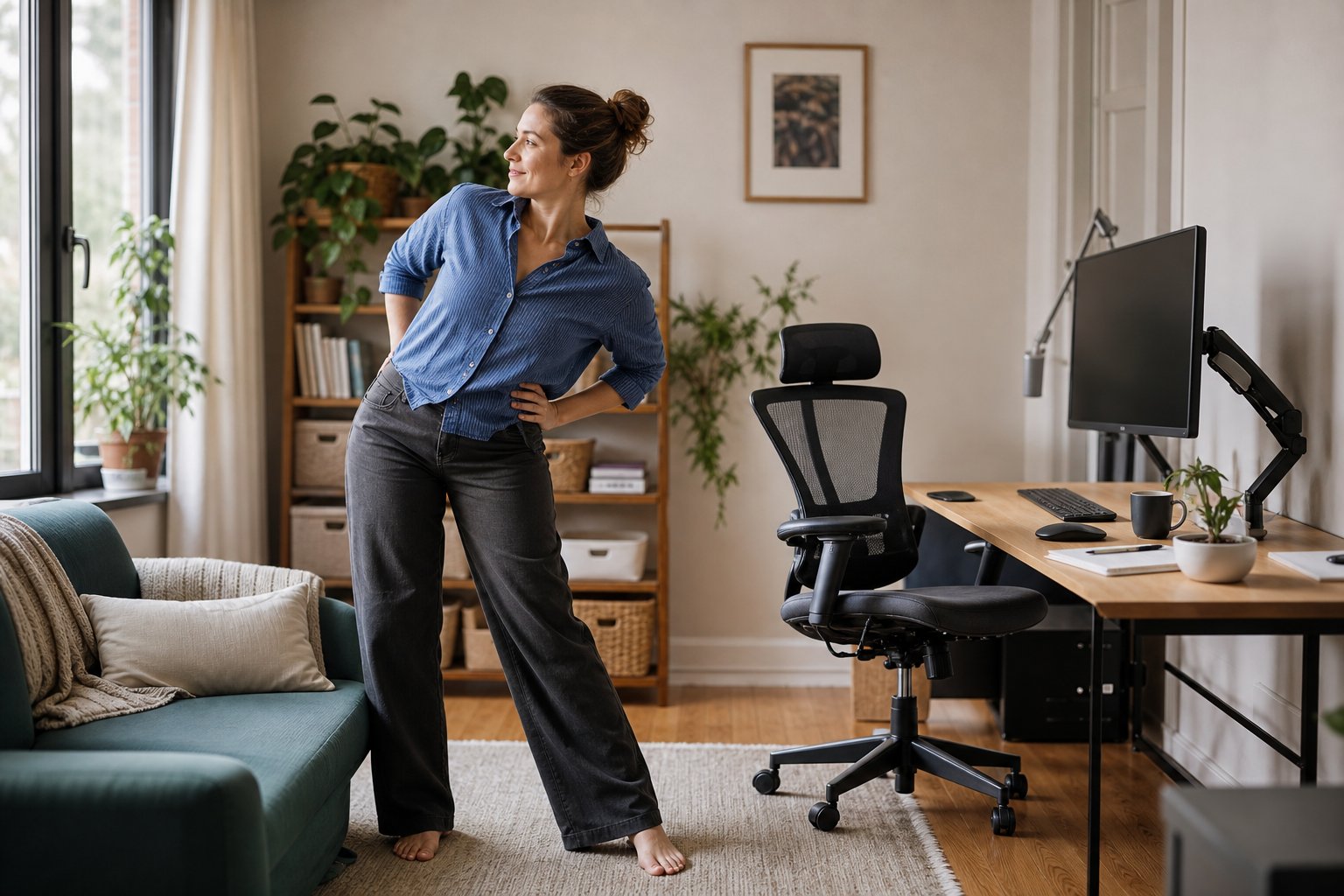
No supported position removes the need to move. Variation can mean standing for a short call, leaning back while reading, walking during a break or changing the desk height. The goal is to avoid letting one position consume the whole day.
Adjust the chair from the floor upward
Make chair adjustments before positioning the monitor. Start with footwear you normally use.
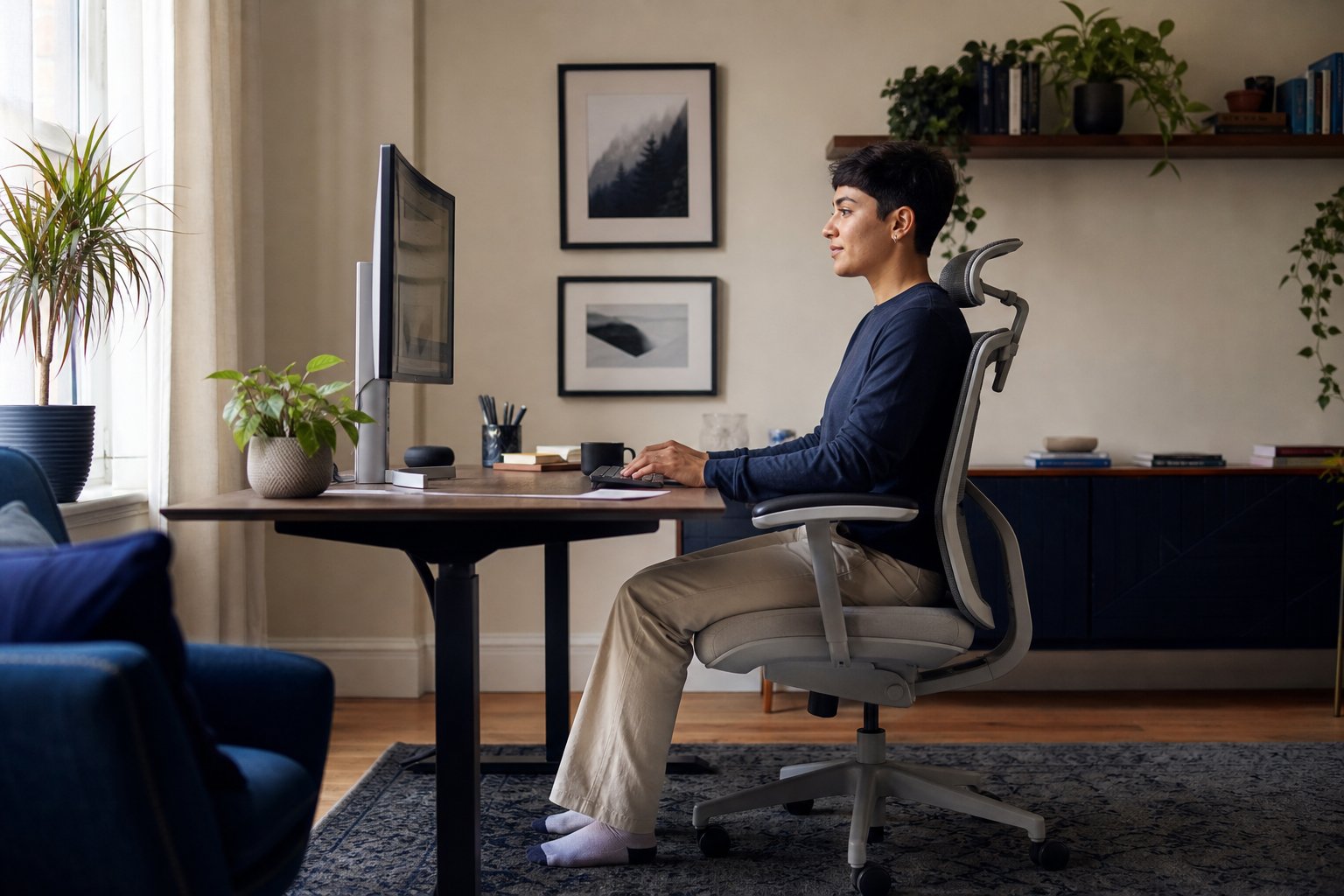
- Set seat height. Place feet flat on the floor with knees around hip level or slightly lower. This is a starting range, not an angle you must force.
- Check seat depth. Sit against the backrest. Leave roughly two to four finger widths between the seat edge and the back of your knees.
- Support the lower back. Adjust lumbar height or backrest tension so the chair supports you without pushing you into an exaggerated arch.
- Set armrests. They should allow relaxed shoulders. If they prevent you from approaching the desk, lower or remove them.
- Allow recline. A small change in backrest angle can unload muscles and distribute pressure. Locking the chair completely upright is not automatically better.
If raising the chair is necessary to meet a fixed desk, use a stable footrest. A box can test the required height, but a long-term footrest should be secure, appropriately sized and resistant to sliding.
Match the keyboard surface to your arms
Bring the keyboard and mouse close enough that upper arms remain near the torso. Keep the mouse beside the keyboard rather than beyond a wide number pad if you do not use that number pad often.
Hands should continue the line of the forearms instead of bending sharply upward or sideways. Do not press the wrists into a hard desk edge while typing. A soft palm rest can support the heel of the hands during pauses, but it should not become a pivot point for active typing.
When the desk is too high
This is common with fixed tables. Raise the chair until the keyboard is near elbow height, then support the feet. If the resulting screen position is too high, separate the screen from the input surface with a monitor arm or laptop riser.
When the desk is too low
Stable furniture risers may help a fixed desk. Another option is a thinner keyboard and lower-profile mouse. Do not improvise with unstable blocks, and verify that added height does not create a tipping risk.
Set monitor height, distance and text size together
Begin with the display about an arm’s length away. Increase interface scaling or text size before pulling the screen uncomfortably close. The top portion of a typical monitor can start at or slightly below eye level.
This changes with screen size and vision. Large displays often work better a little farther away and lower. People using progressive lenses may prefer a lower monitor to avoid tipping the head back.
Center the primary display in front of the body. If two monitors receive equal use, place them symmetrically with the join at the center. If one is primary, center that screen and keep the second nearby at a gentle angle.
Laptop-only work
A laptop asks the screen and keyboard to share one fixed hinge. That is compact, but it limits ergonomic adjustment. For longer sessions, choose one of these compromises:
- Raise the laptop and add an external keyboard and mouse.
- Keep it low for typing, enlarge text and take more frequent position changes.
- Connect one external monitor and use the laptop as a secondary screen.
A tall laptop stand without external input devices usually trades neck flexion for raised shoulders and wrists.
Reduce visual strain without gimmicks
Eye discomfort during screen work can involve reduced blinking, dry air, glare, uncorrected vision and long periods of close focus. Start with environment and habits.
- Make text comfortably readable.
- Keep the screen clean and reduce reflected glare.
- Avoid a bright window directly behind the display.
- Blink fully, especially during concentrated reading.
- Look at a distant object periodically and change focal distance.
- Discuss persistent symptoms with an optometrist or ophthalmologist.
The widely used 20-20-20 reminder—every 20 minutes, look about 20 feet away for 20 seconds—is a simple cue, not a precise treatment. Use any interval you can remember consistently.
Room lighting should keep the screen from appearing like a bright rectangle in a dark room. Position task lights so they illuminate paper without reflecting in the display.
Arrange frequently used objects by reach
Divide the desktop into three zones:
| Zone | What belongs there | Typical examples |
|---|---|---|
| Primary | Used continuously without leaning | Keyboard, mouse, pen tablet |
| Secondary | Used several times each hour | Notebook, phone, water |
| Reference | Used occasionally | Files, charging dock, reference books |
Move heavy binders and infrequently used devices out of the primary zone. Repeated reaching matters more than one dramatic reach. If you use a phone throughout the day, a headset can prevent holding it between shoulder and ear.
Use standing as another position, not a target
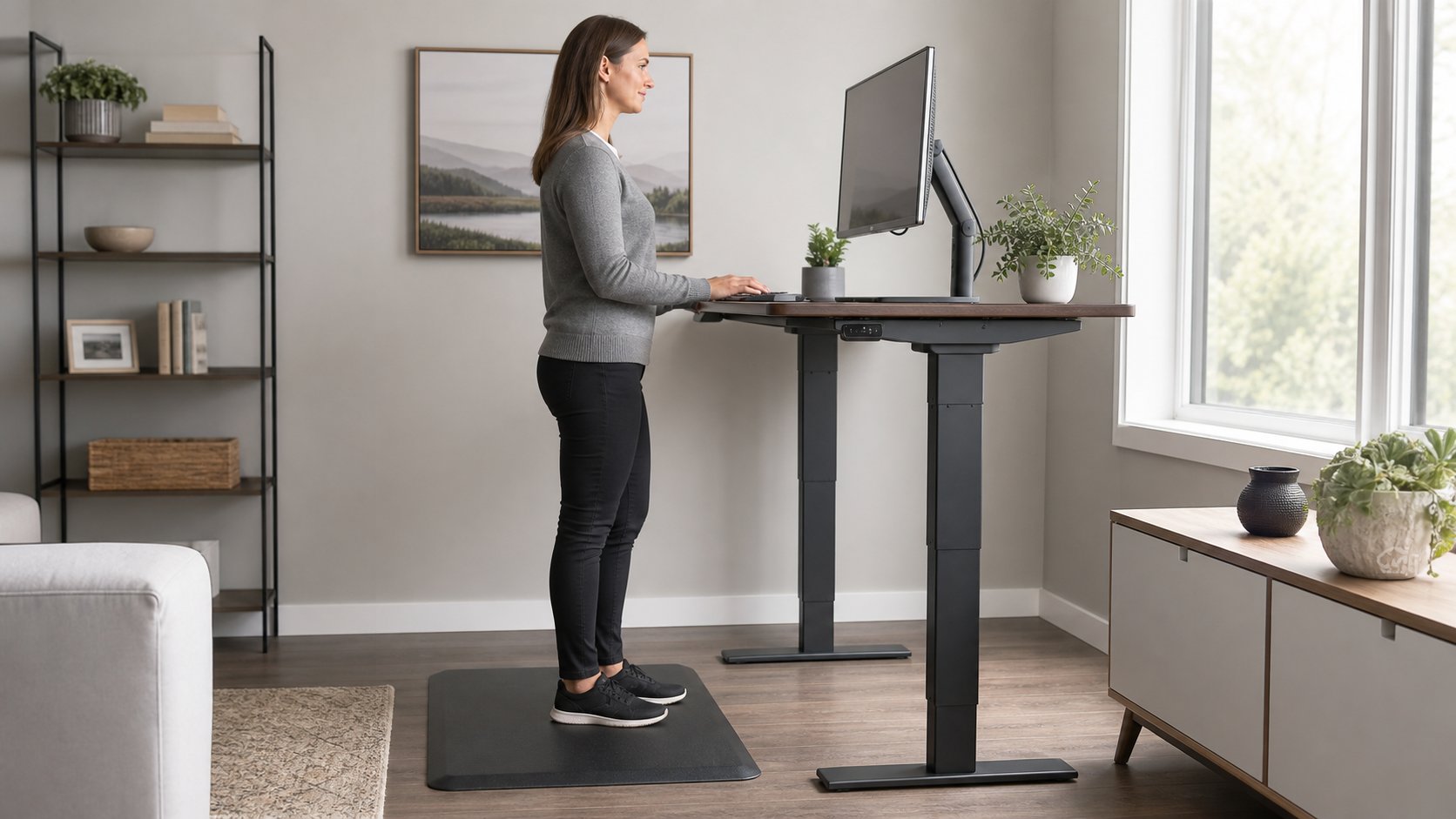
A sit-stand desk expands your options. It does not require standing for half the day. Start with short periods attached to natural work cues: the first call after lunch, a ten-minute review or a task that does not need fine mouse control.
At standing height:
- Keep the keyboard near elbow level.
- Keep the screen high enough that you are not looking down for the whole session.
- Wear supportive footwear if the floor is hard.
- Shift weight and move rather than holding a formal stance.
- Sit when fatigue changes your posture.
An anti-fatigue mat can make a hard floor more comfortable, but it does not replace movement or fix a desk at the wrong height.
Build movement into the workday
A perfect break schedule that you ignore is less useful than a modest cue attached to existing behavior. Try one cue from each group:
Micro changes during work
- Lean back while reading.
- Alternate mouse tasks with keyboard shortcuts.
- Change which calls are seated and standing.
- Relax the hands between typing bursts.
Short breaks
- Stand when a meeting ends.
- Refill water away from the desk.
- Focus on a distant view.
- Walk for two minutes before beginning the next block.
Longer recovery
- Take lunch away from the workstation.
- Include regular physical activity appropriate for your health and ability.
- Protect sleep and recovery instead of asking equipment to compensate for exhaustion.
Choose equipment by adjustment range
Chair
Look for a seat-height range that fits you, an appropriate seat depth, a supportive backrest and armrests that do not block desk access. Verify return terms; chair fit is personal.
Footrest
Choose enough surface area to change foot position. A rocking surface offers movement, while a fixed platform may feel more stable. Neither should slide away during use.
Monitor arm
Confirm monitor weight, mounting pattern, desk thickness and the clearance behind the desk. Gas-spring arms have minimum as well as maximum weight limits.
Keyboard and mouse
Ergonomic input devices can reduce particular movements, but they require adaptation. Test one change at a time. A split keyboard may help some users keep the forearms more neutral; a vertical mouse changes forearm rotation. Neither is universally better.
Run a fifteen-minute ergonomic audit
Take two photographs of yourself doing real work, one from the side and one from behind. Use them for setup—not diagnosis.
Check the following:
- Feet have stable support.
- The backrest supports you in the position you actually use.
- Shoulders are not lifted to reach the keyboard.
- The mouse is close to the keyboard.
- The primary screen is in front of you.
- Text is readable without leaning forward.
- Bright windows and lamps do not reflect in the display.
- You can change position without moving several objects.
Change the clearest mismatch, then work for several days before evaluating. Comfort can change while you adapt, and simultaneous adjustments make cause and effect difficult to identify.
Common mistakes to avoid
Forcing a ninety-degree rule. Human bodies and tasks vary. Treat angles as starting references, not pass-fail tests.
Buying a cushion before adjusting the chair. Use existing adjustments first. An added cushion changes seat height and depth.
Placing the monitor on books while keeping the laptop keyboard attached. This often raises the hands too high. Separate screen and input when possible.
Holding one upright posture all day. Supported recline and movement are valid parts of ergonomic work.
Assuming pain is only a furniture problem. Workload, stress, sleep, previous injury and health conditions can contribute. Seek appropriate professional advice when symptoms persist.
A sustainable ergonomic routine
At the start of the day, restore your known chair and screen positions. During work, use task changes as cues to move. At the end of the week, review only recurring discomfort—not every passing sensation.
Your workstation succeeds when it supports work without demanding constant attention. Fit the equipment to you, keep important tools close, make the display easy to see and leave enough flexibility to move often. That combination is more useful than any single product carrying an ergonomic label.