Use an iPad as a Second Monitor: Sidecar Setup Guide
Use an iPad as a second screen for a Mac with Sidecar, choose wired or wireless mode, arrange the display and fix common connection problems.
What to know first
- Buy for your workflow and connection needs, not headline specifications.
- Reliability and warranty often matter more than a minor speed gain.
- Check compatibility before committing to an accessory.
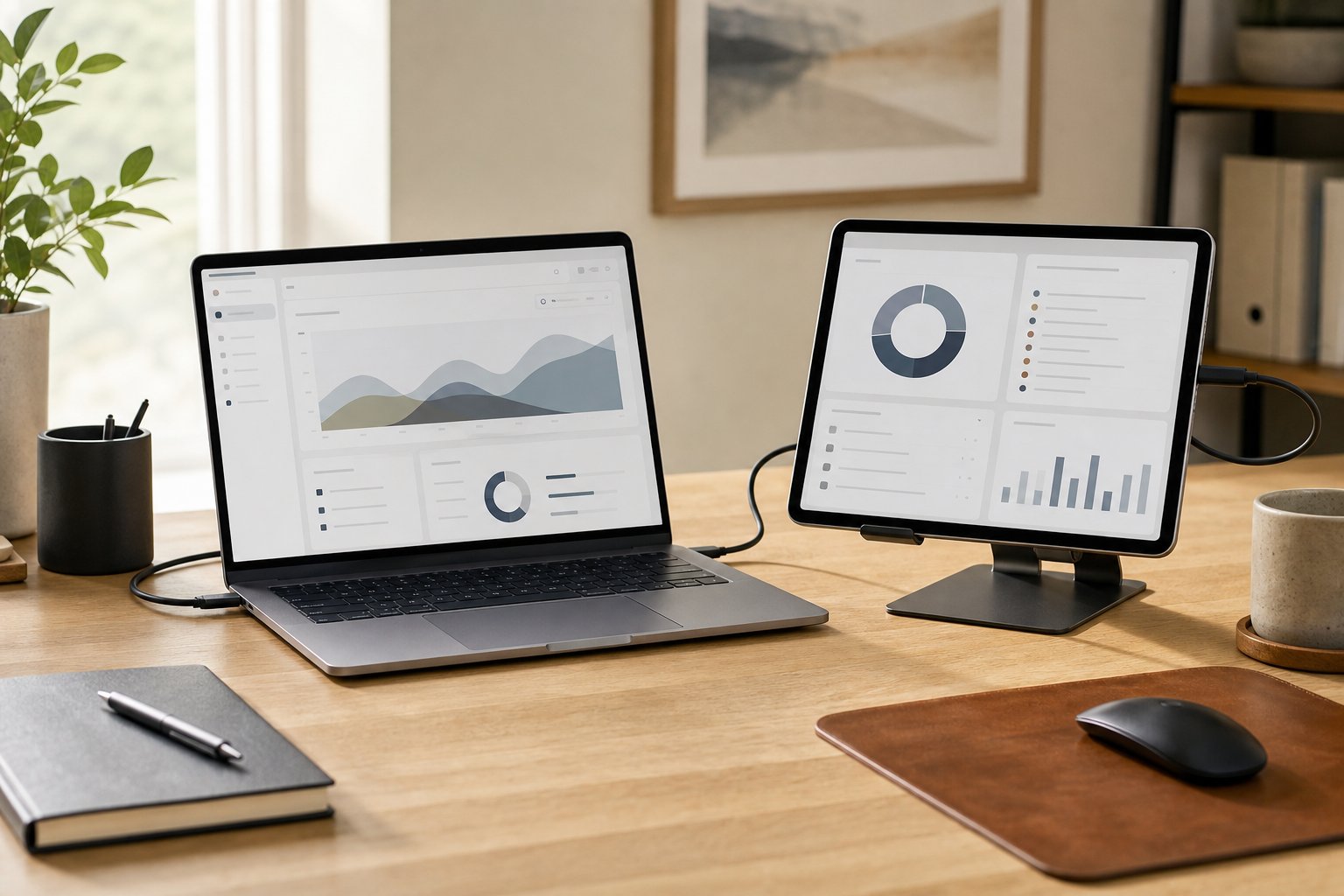
You can use a compatible iPad as a second monitor for a Mac with Apple’s built-in Sidecar feature. It can extend the desktop, mirror the Mac display or act as a compact secondary screen for messages, reference material and call controls.
Sidecar is most useful when you already own the iPad. It is portable, requires no new monitor and works wirelessly for short sessions. A conventional monitor remains better for all-day use when you need a larger screen, more stable placement and no battery management.
This guide reflects Apple’s published Sidecar requirements as of September 2026. Check the current Apple Support page before troubleshooting an older device or operating system.
Sidecar requirements
Apple currently lists Sidecar support with macOS Catalina 10.15 or later and iPadOS 13 or later on compatible hardware. Supported families include:
Compatible Macs
- MacBook Pro introduced in 2016 or later
- MacBook introduced in 2016 or later
- MacBook Air introduced in 2018 or later
- iMac introduced in 2017 or later, plus the 27-inch Retina 5K Late 2015 model
- iMac Pro
- Mac mini introduced in 2018 or later
- Mac Pro introduced in 2019 or later
- Mac Studio introduced in 2022 or later
Compatible iPads
- All iPad Pro models
- iPad 6th generation or later
- iPad mini 5th generation or later
- iPad Air 3rd generation or later
Both devices must use the same Apple Account with two-factor authentication. Update macOS and iPadOS before assuming the hardware is incompatible.
Wireless vs wired Sidecar
| Connection | Advantages | Trade-offs | Best for |
|---|---|---|---|
| Wireless | Fast setup, no desk cable | Uses battery and can be less predictable | Short mobile sessions |
| USB cable | Charges iPad and improves consistency | Requires a compatible cable and port | Longer work blocks |
For wireless Sidecar, Apple says both devices should be within 10 meters, with Bluetooth, Wi-Fi and Handoff enabled. The Mac should not be sharing its internet connection, and the iPad should not be sharing a cellular connection.
For USB use, connect with a cable that supports data—not a charge-only cable—and allow the iPad to trust the Mac when prompted.
How to connect an iPad with Sidecar
The exact labels can change slightly between macOS versions, but the process is straightforward.
From Control Center
- Unlock the Mac and iPad.
- Confirm both are signed into the same Apple Account.
- Open Control Center in the Mac menu bar.
- Choose Screen Mirroring.
- Select the iPad.
- Wait for the extended desktop to appear.
From Display settings
- Open System Settings on the Mac.
- Choose Displays.
- Use the add-display control.
- Select the iPad under the option to mirror or extend.
- Arrange the displays to match their physical positions.
If the iPad shows the same content as the Mac, change the mode from mirror to extend in Display settings.
Arrange the iPad correctly
In macOS Display settings, drag the display rectangles so the iPad sits on the same side as the physical tablet. Align the top or center based on your stand.
The pointer crosses between displays at the shared edge shown in the arrangement. If it seems to disappear, the virtual screens do not match the physical setup.
Place the iPad on a stable stand. Avoid leaning it against a cup, laptop or object that can slide. Keep the screen near the main monitor’s height when you glance between them frequently.
For all-day use, the iPad should not force repeated neck rotation. Keep the primary Mac display directly ahead and the iPad close beside it.
Choose what belongs on the second screen
An iPad is smaller than most desktop monitors, so use it for one supporting function rather than a miniature copy of the entire workflow.
Good Sidecar tasks include:
- Team chat or email triage
- Calendar and task list
- Video-call participant window
- Reference document
- Music or audio controls
- Preview window for creative applications
- A single analytics or monitoring panel
Keep detailed spreadsheets, long documents and primary design work on the larger display unless the iPad size and resolution are comfortable for you.
Use the Sidebar and Touch Bar controls
Sidecar can show a sidebar with modifier keys and common controls. It may also display Touch Bar controls for compatible applications, even when the Mac has no physical Touch Bar.
These controls are optional. Hide them if they reduce usable screen area. A small tablet often benefits from a cleaner full-screen application.
Sidecar is not a general touch-screen conversion for macOS. Some workflows support Apple Pencil input, but do not expect every Mac interface element to behave like an iPad app.
Apple Pencil with Sidecar
A compatible Apple Pencil can act as an input device in applications that support tablet input. It is useful for drawing, photo retouching, annotation and precise selection.
Place the iPad flat or on a drawing stand for pen work. A tall vertical stand is better for viewing but can be uncomfortable for drawing.
Check application support and pressure behavior before buying an Apple Pencil specifically for Sidecar.
Keep the iPad charged
Wireless Sidecar uses the iPad battery. For sessions longer than a meeting or short focus block, connect it to the Mac or an appropriate power source.
A wired connection can keep the tablet charged, but power delivery depends on the Mac, cable and connected accessories. If the battery still falls, use a powered dock or the iPad’s suitable charger according to manufacturer guidance.
Route the cable so the tablet can be removed without pulling a dock or laptop from the desk.
Fix common Sidecar problems
The iPad does not appear
Check:
- Both devices meet the hardware requirements.
- macOS and iPadOS are updated.
- Both use the same Apple Account.
- Two-factor authentication is enabled.
- Wi-Fi, Bluetooth and Handoff are on.
- Personal Hotspot or internet sharing is off.
- Devices are within wireless range.
Restart both devices after changing account or continuity settings.
The connection lags or drops
Move closer to the Mac, reduce wireless congestion or connect by USB. Disconnect other unused wireless display features. Check whether a VPN or managed-device policy affects local connections.
For time-sensitive presentations, use a cable and test before the meeting.
The cable charges but Sidecar does not connect
Some USB cables support power without full data capability. Try the original or a verified data cable. Unlock the iPad and accept the trust prompt.
The pointer moves in the wrong direction
Open Display settings and rearrange the screens. Match the iPad’s physical side and vertical position.
Text is too small
Use application zoom, a larger font or macOS display scaling where available. Move supporting tasks to the iPad rather than forcing a dense primary application into a small space.
Colors look different
The iPad and Mac may use different display technologies and settings. Disable features such as automatic tone adjustment temporarily when color matching matters, and use a calibrated primary display for color-critical decisions.
Sidecar alternatives
Universal Control
Universal Control lets one keyboard and pointing device control a Mac and iPad while each device runs its own operating system and apps. Use it when you want native iPad apps beside the Mac rather than macOS windows on the iPad.
AirPlay to Mac
AirPlay serves different sharing and mirroring needs. It does not replace Sidecar’s extended Mac desktop in every workflow.
Third-party display applications
Third-party tools may support other computers, additional features or older hardware. Review security, driver requirements, subscription cost and employer device policy before installing them.
Portable monitor
A portable monitor provides a larger dedicated display, predictable aspect ratio and broader computer compatibility. It adds another device and cable but may be better for frequent travel work.
Is an iPad a good permanent second monitor?
It can be, when the secondary task fits the screen and the stand keeps it comfortable. It is less convincing when you need all-day reference text, exact color matching or the reliability of a wired desktop monitor.
Use what you already own for a week before buying accessories. Note whether the second screen removes window switching or simply adds another place for distracting communication.
A practical desk setup
For a laptop-and-iPad arrangement:
- Raise the laptop on a stable stand.
- Add an external keyboard and mouse.
- Put the iPad beside the dominant side of the laptop.
- Match screen heights as closely as practical.
- Connect by USB for long sessions.
- Place reference or communication tools on the iPad.
- Keep the primary work centered on the Mac.
This creates a compact dual-screen workstation without asking your neck to turn toward a distant tablet.
Final verdict
Sidecar is the easiest way to use a compatible iPad as a second display for a Mac. Start wirelessly for occasional use, switch to USB for longer sessions and place the tablet close to the primary display on a stable stand.
It is an excellent use of an iPad you already own. Buy a dedicated external monitor instead when screen size, all-day stability and cross-platform compatibility matter more than portability.