Best Keyboard and Mouse Combos Under $100: 5 Picks
Compare five keyboard and mouse combos under $100 by layout, connection, device switching, key feel, mouse shape, software, security and return policy.
What to know first
- Buy for your workflow and connection needs, not headline specifications.
- Reliability and warranty often matter more than a minor speed gain.
- Check compatibility before committing to an accessory.
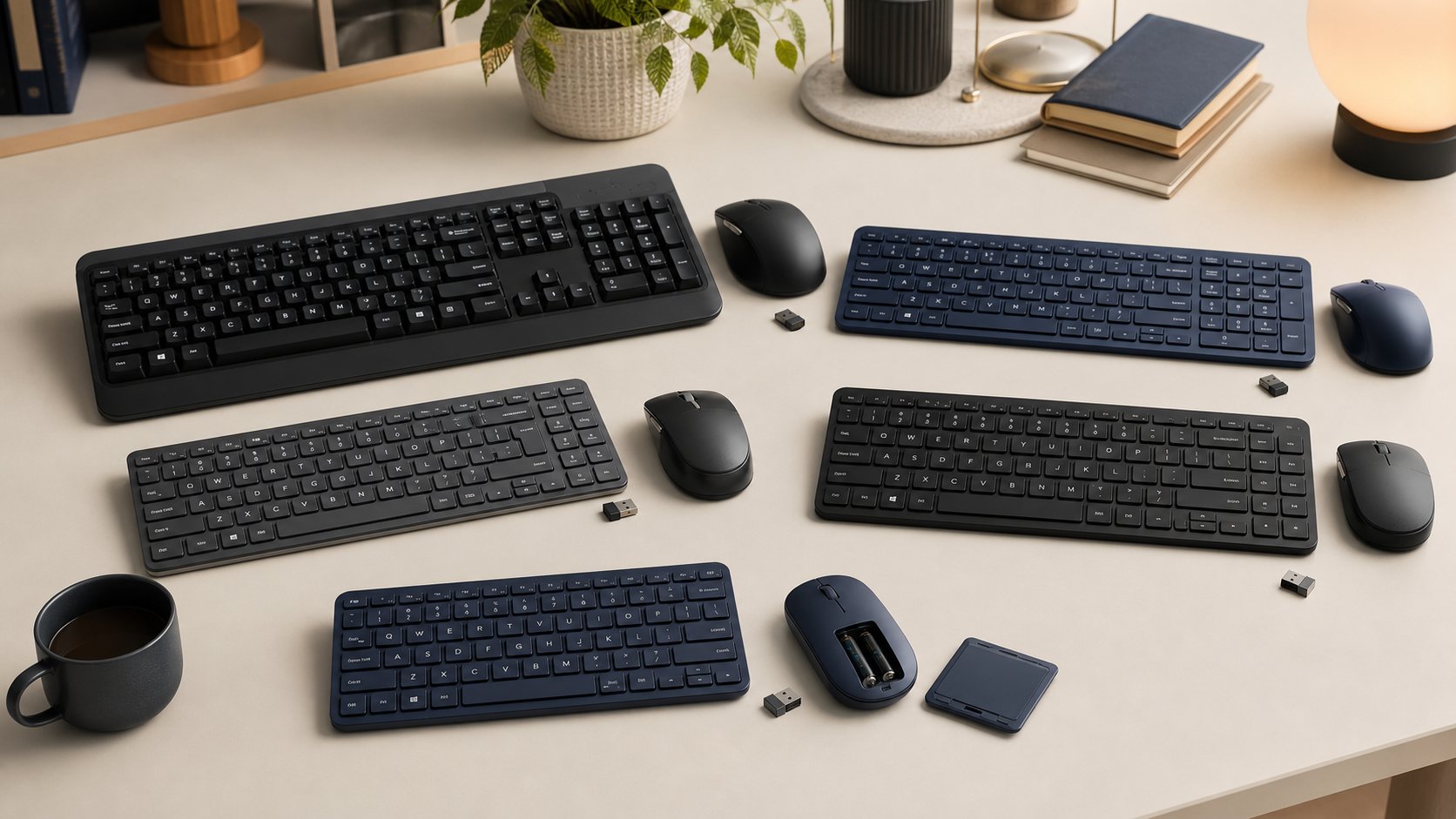
Logitech MK540 Advanced is the best straightforward full-size combo under $100, while MK850 Performance is the better choice for switching among several devices when discounted within budget. Dell KM7321W adds multi-device controls and a more capable mouse, CHERRY Stream Desktop emphasizes quiet scissor keys, and Logitech MK470 fits a number pad into a compact budget set.
Prices change by layout, region and promotion. Treat $100 as the delivered pre-tax ceiling and verify that the exact SKU includes the receiver and keyboard language you need. RemoteNest has not independently tested wireless latency, battery life, key durability or sensor performance.
Quick comparison
| Combo | Best for | Connection | Main trade-off |
|---|---|---|---|
| Logitech MK540 Advanced | Familiar one-computer setup | Unifying USB receiver | No Bluetooth or device switching |
| Logitech MK850 Performance | Three-device workflow | Unifying receiver and Bluetooth | Large keyboard and mouse |
| Dell KM7321W | Multi-device business features | 2.4 GHz receiver and Bluetooth 5.0 | Configuration software is Windows-focused |
| CHERRY Stream Desktop | Quiet low-profile typing | 2.4 GHz USB receiver | Windows layout and USB-A requirement |
| Logitech MK470 Slim | Compact budget setup | One USB receiver | Tight layout and small mouse |
1. Logitech MK540 Advanced: best straightforward set
The Logitech MK540 Advanced pairs a full-size deep-profile keyboard with an ambidextrous three-button mouse and one Unifying USB receiver. Logitech lists adjustable keyboard legs, a palm rest and customizable function keys.
Best for: a Windows-oriented desk with one computer and familiar full-size typing.
Strengths: simple receiver setup, number pad, long claimed battery life and a mouse usable in either hand.
Trade-offs: no Bluetooth, no device switching and a basic pointer with line-by-line scrolling. The keyboard’s width can push the mouse farther from the body.
2. Logitech MK850 Performance: best multi-device comfort set
The Logitech MK850 Performance connects through a Unifying receiver or Bluetooth and can switch among up to three compatible devices. It combines a curved full-size keyboard and integrated palm rest with a contoured mouse.
Best for: moving between a work computer, personal computer and tablet.
Strengths: device switching, broad operating-system support and a mouse with fast and tilt scrolling.
Trade-offs: large footprint, right-handed mouse shape and legacy Unifying rather than newer Logi Bolt. Current price sometimes crosses $100, so buy only when the exact package remains within budget.
3. Dell KM7321W: best multi-device business controls
The current Dell Pro Plus KM7321W uses a USB receiver and Bluetooth 5.0 to connect up to three devices. Dell lists a full-size scissor keyboard, 12 programmable function keys and a seven-button mouse with adjustable resolution.
Best for: productivity shortcuts and switching among computers with one coordinated set.
Strengths: slim scissor keys, capable mouse, multi-device modes and a three-year current US warranty listing.
Trade-offs: Dell Peripheral Manager features depend on supported Windows versions, while basic compatibility is broader. The receiver and Bluetooth modes can behave differently under employer policy.
4. CHERRY Stream Desktop: best quiet typing
The CHERRY Stream Desktop pairs a low-profile full-size keyboard using CHERRY SX scissor switches with a quiet six-button ambidextrous mouse. It uses one 2.4 GHz USB-A receiver.
Best for: shared rooms and calls where key and click noise matter.
Strengths: low profile, metal reinforcement in the keyboard, adjustable mouse resolution and AES-128 wireless encryption documented for the keyboard.
Trade-offs: Windows-centered layout and software, no Bluetooth and a wide 462.2 mm keyboard. Confirm the security documentation for both keyboard and mouse on the exact regional SKU.
5. Logitech MK470 Slim: best compact budget set
The Logitech MK470 Slim Combo pairs a compact low-profile keyboard that retains a number pad with a small three-button mouse and one USB receiver.
Best for: a shallow or narrow desk where a conventional full-size keyboard pushes the mouse too far away.
Strengths: reduced footprint, quiet low-profile keys, simple plug-and-play setup and a typically low list price.
Trade-offs: tight navigation-key spacing, small mouse and no Bluetooth or multi-device switching. The compact layout is space-efficient but may slow users who depend on a separated navigation cluster.
Start with keyboard layout
A low price is not useful if the layout is wrong. Check:
- Language and regional legends
- ANSI or ISO physical layout
- Full-size, tenkeyless or compact width
- Dedicated number pad
- Navigation cluster
- Function-row behavior
- Operating-system modifier labels
- Enter and Shift key shape
Marketplace listings sometimes combine several regional SKUs on one page. Match the part number, not only the product photo.
Measure mouse reach
OSHA’s computer-workstation guidance recommends keeping the keyboard and mouse close together at about the same height so the elbow can remain near the body.
A full-size keyboard can be 17 to 18 inches wide. If the number pad is rarely used, a compact keyboard plus separate mouse may be more comfortable than any bundled full-size set.
Measure shoulder-to-mouse reach with the keyboard centered on the display. Do not center the complete keyboard if that shifts the letter keys away from the body.
Match the mouse to the user
Combo manufacturers choose one mouse for a broad audience. Assess it independently.
Hand and shape
Check whether it is ambidextrous or right-handed and whether its length supports your grip.
Buttons
Three buttons are enough for simple documents. Side buttons and tilt scrolling help spreadsheets or browsers only if they are reachable without strain.
Sensor
High DPI is not a quality guarantee. The useful setting moves across all screens without repeated lifting while preserving control.
Surface
Test on the actual desk mat. Glass and glossy surfaces can challenge optical sensors.
If the mouse fails, buying separate devices is better than tolerating half of a bargain.
Choose receiver, Bluetooth or both
USB receiver
Usually simple and consistent, but occupies a port and is easy to lose. Store it in the device when traveling if a compartment exists.
Bluetooth
Preserves a USB port and connects directly to many laptops and tablets. Initial login, BIOS and recovery environments may not support it.
Dual mode
Allows a receiver for the main computer and Bluetooth for secondary devices. Switching must exist on both keyboard and mouse; otherwise they can control different computers accidentally.
Employer-managed devices may restrict Bluetooth or peripheral software. Confirm before purchase.
Wireless security and updates
Keyboards transmit everything typed. Use current products from traceable manufacturers and keep peripheral software and firmware updated where supported.
Check:
- Documented encryption
- Receiver pairing method
- Firmware update path
- Whether pairing requires admin rights
- Replacement-receiver availability
- Support lifecycle
- Employer-approved models
AES wording may apply to only one device or one connection mode. Read the exact technical sheet rather than assuming the entire combo behaves identically.
Software is optional until it is required
Customization apps can remap keys, change pointer speed and show battery state. They also add background services and update responsibilities.
Before installing:
- Test basic operation without software.
- Download only from the manufacturer.
- Review requested permissions.
- Ask IT on a managed computer.
- Export settings if supported.
- Confirm essential controls remain usable after uninstalling.
A work keyboard should still type correctly when its utility is unavailable.
Battery strategy
Long battery-life claims depend on use and radio conditions. Replaceable AA or AAA cells are easy to swap but need spares and responsible recycling. Rechargeable sets reduce disposable batteries but require cable access and eventually age.
For critical work:
- Keep a spare wired input device.
- Replace both batteries as a matched set where instructed.
- Remove leaking or swollen cells safely.
- Turn devices off for long storage.
- Do not mix chemistry or old and new cells.
A nearly empty wireless keyboard is a poor surprise during account recovery.
Run a return-window test
Use the keyboard and mouse combo scorecard.
Typing
Write for 30 minutes and note missed keys, noise, wrist angle and palm-rest contact.
Pointing
Select small targets, scroll a long document and move across all displays.
Calls
Record keyboard and mouse noise with the normal microphone.
Switching
Wake each computer and change devices ten times. Look for mismatched keyboard and mouse targets.
Recovery
Restart and test login before optional software loads.
Return the set if either device creates repeated adaptation or discomfort.
Common mistakes
Buying by keyboard features while ignoring the mouse. Both must fit.
Choosing the wrong regional layout. Verify part number and key shape.
Losing the receiver. Check storage and replacement policy.
Installing software without approval. Managed computers may prohibit it.
Assuming Bluetooth works before login. Test restart and recovery.
Keeping a full-size board when it forces mouse reach. Width is an ergonomic measurement.
Comparing temporary sale prices as permanent value. Include batteries and replacement options.
Final recommendation
Choose Logitech MK540 for a simple one-computer full-size setup, MK850 when multi-device switching and a larger contoured set fit the desk, Dell KM7321W for business controls, CHERRY Stream Desktop for quiet low-profile typing or Logitech MK470 for a compact budget layout.
Verify the exact layout, receiver and current delivered price. Test the keyboard and mouse as two separate tools—the best sub-$100 combo is the one where neither half becomes an early replacement.