Laptop Cooling Pads: Do They Work for Remote Work?
Learn when a laptop cooling pad can improve airflow or performance, how to test one fairly and which overheating symptoms need cleaning, service or repair.
What to know first
- Buy for your workflow and connection needs, not headline specifications.
- Reliability and warranty often matter more than a minor speed gain.
- Check compatibility before committing to an accessory.
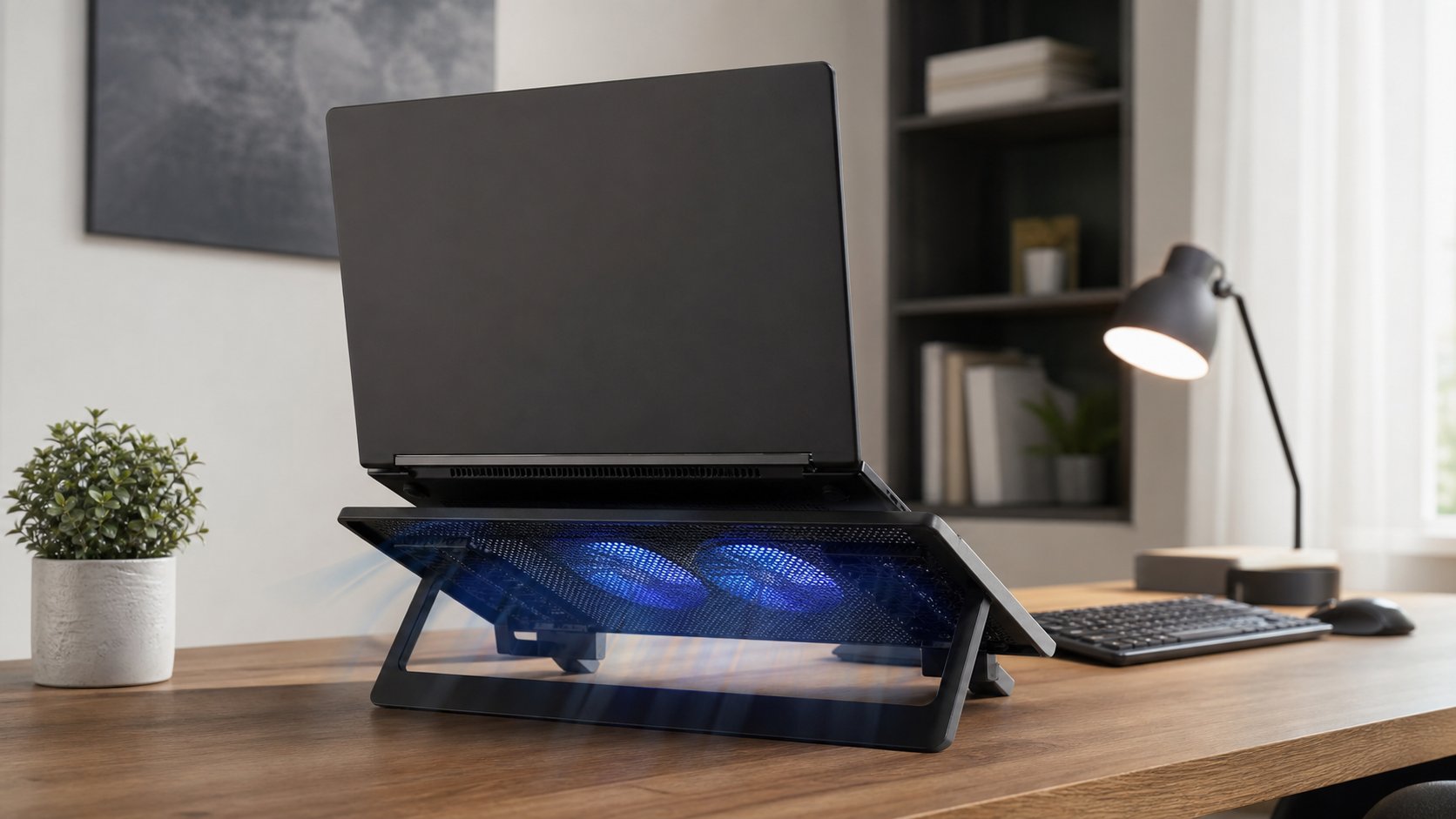
Laptop cooling pads can reduce temperatures on some fan-cooled laptops, especially when bottom intake vents align with the pad’s airflow. They may help sustain performance under long workloads, but results vary and a pad will not repair a blocked internal fan, dried thermal interface, swollen battery or failing component.
First place the laptop on a stable hard surface, clear the vents, update approved firmware and identify the actual workload. Then test a returnable pad under repeatable conditions.
Quick verdict
| Situation | Likely value of a cooling pad |
|---|---|
| Bottom-intake gaming or workstation laptop | Potentially useful |
| Laptop sits flat with little intake clearance | A stand may help; fan may add more |
| Fanless sealed laptop | Usually limited |
| Side or rear intake that does not align | Variable |
| Normal warmth during light work | Usually unnecessary |
| Thermal throttling under sustained load | May help, after basic maintenance checks |
| Swollen battery or burning smell | Stop use; cooling pad is not a fix |
| Soft bed or couch use | Move to a hard surface first |
Do not compare only case temperature. The goal is stable, safe operation—not making the exterior feel cold.
How laptop cooling works
A laptop moves heat from processors to heat pipes, vapor chambers, fins and the chassis. Fans draw cooler air in and exhaust warmer air.
A cooling pad may:
- Increase fresh air near bottom intakes
- Raise the laptop for more clearance
- Reduce recirculation of exhaust air
- Cool the exterior bottom panel
- Improve user comfort
Performance depends on vent position, internal fan control, room temperature and workload.
What thermal throttling means
Processors reduce power or clock speed when thermal, electrical or firmware limits are reached. This protects hardware and stays within the laptop’s designed operating envelope.
A cooling pad may delay or reduce thermal throttling in a suitable design. It cannot increase performance beyond power, firmware and software limits.
Short benchmark bursts can finish before the system becomes heat-soaked. Test a workload similar to your actual compile, render, export, game or analysis.
Start with a hard, ventilated surface
Apple’s temperature guidance recommends using Mac laptops on a stable work surface with good ventilation and avoiding beds, pillows and bedding.
Dell’s overheating guidance similarly identifies blocked vents, dust and high resource use as common causes and advises a flat hard surface.
These steps cost nothing and can solve airflow problems attributed to “weak cooling.”
Check vent layout
Turn the laptop off and inspect without opening it.
Identify:
- Intake openings
- Exhaust openings
- Rubber feet
- Areas blocked by a flat stand
- Hinge clearance
- Manufacturer-approved operating orientation
A pad fan blowing into a solid bottom panel may provide little internal benefit. A solid riser covering intake slots can make cooling worse.
Never insert objects into vents.
Cooling pad vs passive stand
Passive stand
Raises the laptop without fans.
Advantages: silent, no power draw, fewer failure points.
Best for: improving clearance and screen height.
Active cooling pad
Adds one or more fans below the computer.
Advantages: can provide extra airflow to compatible intakes.
Trade-offs: noise, dust movement, USB use and mechanical wear.
Test a safe open stand before assuming active fans are needed.
For desk ergonomics, raising a laptop requires an external keyboard and mouse for longer work. See the ergonomic laptop setup.
Fan size and speed
One large fan often moves air at a lower perceived pitch than several small high-speed fans, but enclosure and bearing quality matter.
More advertised RPM is not automatically better. Compare:
- Airflow alignment
- Noise at your ears
- Speed control
- Fan-bearing quality
- Vibration
- Intake grill resistance
- Replaceability
Manufacturer airflow figures are difficult to compare when test methods differ.
Noise matters in a home office
A cooling pad adds sound beneath the microphone.
Test during:
- Video calls
- Voice recording
- Quiet writing
- Sustained builds
- Evening work
A pad that lowers temperature slightly but forces aggressive noise suppression may reduce overall work quality.
Variable speed allows quiet operation during calls and more airflow during heavy local processing.
Power and USB connections
Many pads use USB power. Prefer a design that:
- Stays within standard port power limits
- Includes a sound cable and strain relief
- Does not require unknown drivers
- Avoids pass-through claims that exceed the host connection
- Has a physical power switch
Do not connect damaged cables or unapproved power adapters. A USB pass-through port may share bandwidth or power and is not equivalent to a powered dock.
Size and stability
The laptop’s feet should sit fully on supported, non-slip points. Check:
- Width and depth
- Maximum weight
- Front retaining lip
- Hinge clearance
- Tilt lock
- Keyboard access
- Cable path
A steep angle can improve screen height but make the built-in keyboard awkward. Use external input devices rather than bending wrists on an elevated chassis.
How to test a cooling pad
Use one repeatable workload.
Baseline
- Update approved system firmware and software.
- Put the laptop on the same hard desk.
- Set the same power mode.
- Let the system reach a similar idle state.
- Run the workload for 20–30 minutes or its normal duration.
- Record completion time, fan behavior, noise and any slowdown.
Cooling-pad run
Repeat with:
- Same room
- Same workload
- Same power mode
- Same application versions
- Pad at a documented fan setting
Use manufacturer diagnostic tools where available. Apple warns that third-party temperature applications do not necessarily measure external case temperature and should not be used alone to diagnose hardware problems.
What counts as improvement
A useful pad should deliver at least one practical benefit:
- Faster repeatable workload
- Less performance drop over time
- Lower internal temperature through a reliable supported measurement
- Lower laptop fan speed at the same work rate
- Better surface comfort
- More stable placement
A one-degree change in an uncontrolled test is not a reason to keep noisy equipment.
Clean vents safely
Follow the laptop manufacturer’s service instructions.
General cautions:
- Shut down and unplug first.
- Do not open the chassis if policy or warranty prohibits it.
- Do not use a household vacuum on electronics.
- Use compressed air only as directed and keep the can oriented safely.
- Do not force fans to spin at excessive speed.
- Do not spray liquid into vents.
Managed employer laptops should go through IT support.
Software and workload checks
Unexpected heat can come from:
- A stuck background process
- Browser tabs
- Video encoding
- Malware
- Cloud synchronization
- Operating-system indexing
- External displays
- Charging
- High-performance power mode
Use built-in task or activity monitors to identify sustained CPU, GPU or disk use. Do not terminate security or management processes without authorization.
Red flags that need service
Stop using and seek qualified support for:
- Swollen battery or separated case
- Burning smell
- Smoke or sparks
- Liquid exposure
- Fan grinding or repeated failure
- Sudden shutdowns
- Battery overheating warnings
- Damaged charging port
- Heat that persists at idle after restart
Move a device with a suspected damaged battery only according to professional safety guidance. Do not press the case closed or puncture the battery.
Cooling pads and fanless laptops
A fanless laptop relies on its chassis and passive heat spreading. A pad may cool the exterior slightly, but no bottom fan can create an internal intake path that does not exist.
Benefits may be small and workload limits remain governed by the computer’s design. A ventilated stand can still improve comfort and posture.
Cooling pads for docking setups
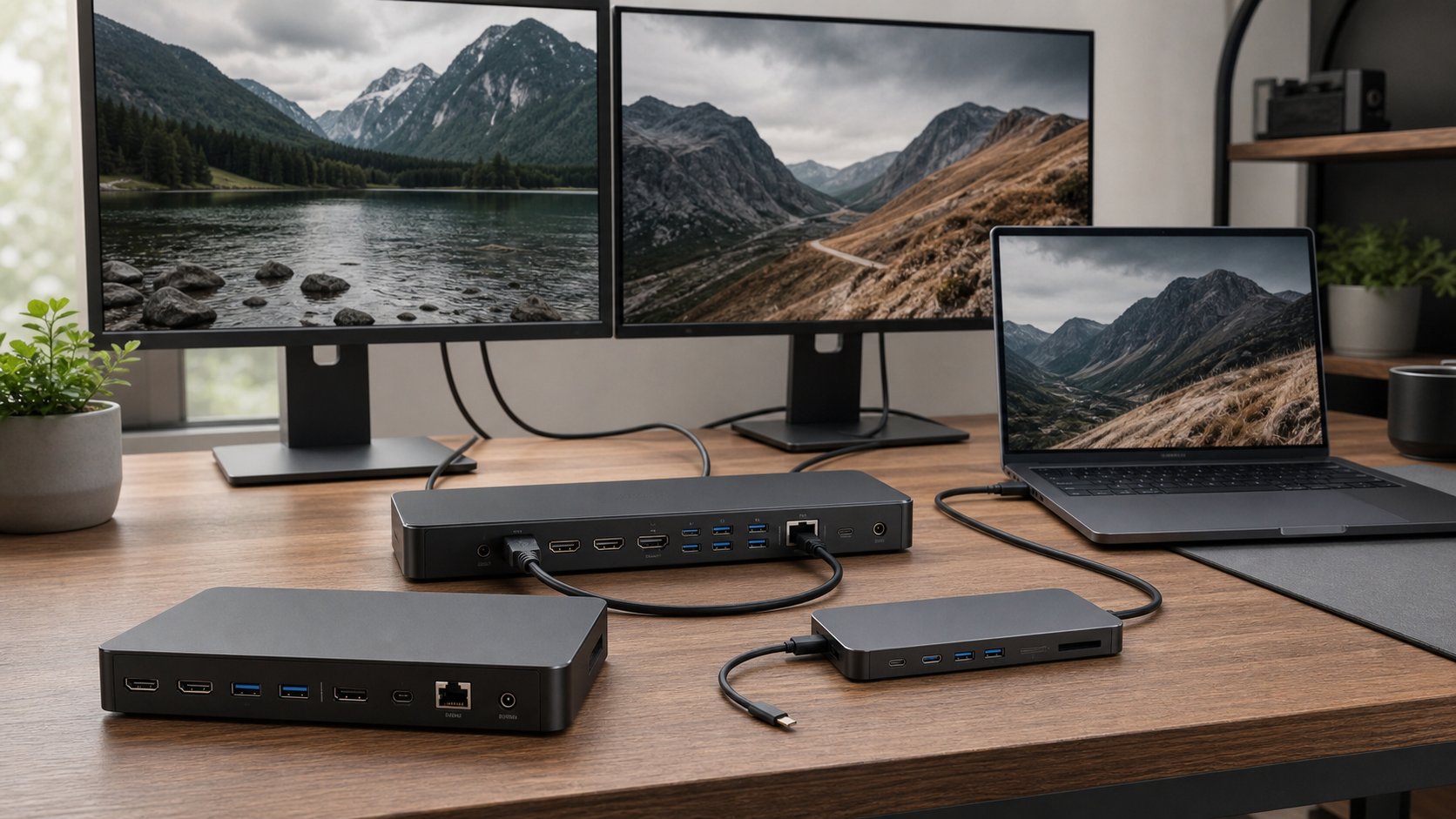
A dock may connect power, displays, storage and network while the laptop runs closed.
Verify whether the manufacturer permits closed-lid operation under the workload and orientation. Keep exhaust openings clear of the dock and wall.
External displays can increase graphics load. If temperatures rise only when docked, test display resolution, refresh rate, charger wattage and background tasks.
Common mistakes
Using the laptop on bedding. Move it first.
Blocking vents with the pad frame. Match the layout.
Comparing different workloads. Test repeatably.
Chasing the lowest temperature. Evaluate performance, noise and safety.
Powering the pad from an overloaded hub. Follow USB limits.
Ignoring dust and failed fans. External airflow cannot repair them.
Treating warmth as failure. Normal laptops can feel warm.
Using a pad instead of service. Red flags require support.
Buying checklist
- Laptop dimensions and weight
- Intake location
- Open airflow area
- Fan size and speed control
- Noise specification and return policy
- Stable support points
- Appropriate tilt range
- USB power design
- Cable quality
- Warranty
- Ease of cleaning
Skip decorative lighting unless it provides actual value and can be disabled.
Final recommendation
Try a stable ventilated stand and basic maintenance before an active cooling pad. Buy a pad when a fan-cooled laptop has bottom intakes, runs sustained heavy work and shows a repeatable performance, noise or comfort benefit from extra airflow.
Test it under the same workload and return it if the improvement is not meaningful. Overheating warnings, damaged batteries, failed fans and shutdowns belong with qualified service—not under a larger fan.