Best Monitor Size for Remote Work: 27 vs 32 Inches
Choose between 27- and 32-inch monitors using resolution, pixel density, viewing distance, scaling, desk depth and window layout rather than screen size alone.
What to know first
- Buy for your workflow and connection needs, not headline specifications.
- Reliability and warranty often matter more than a minor speed gain.
- Check compatibility before committing to an accessory.
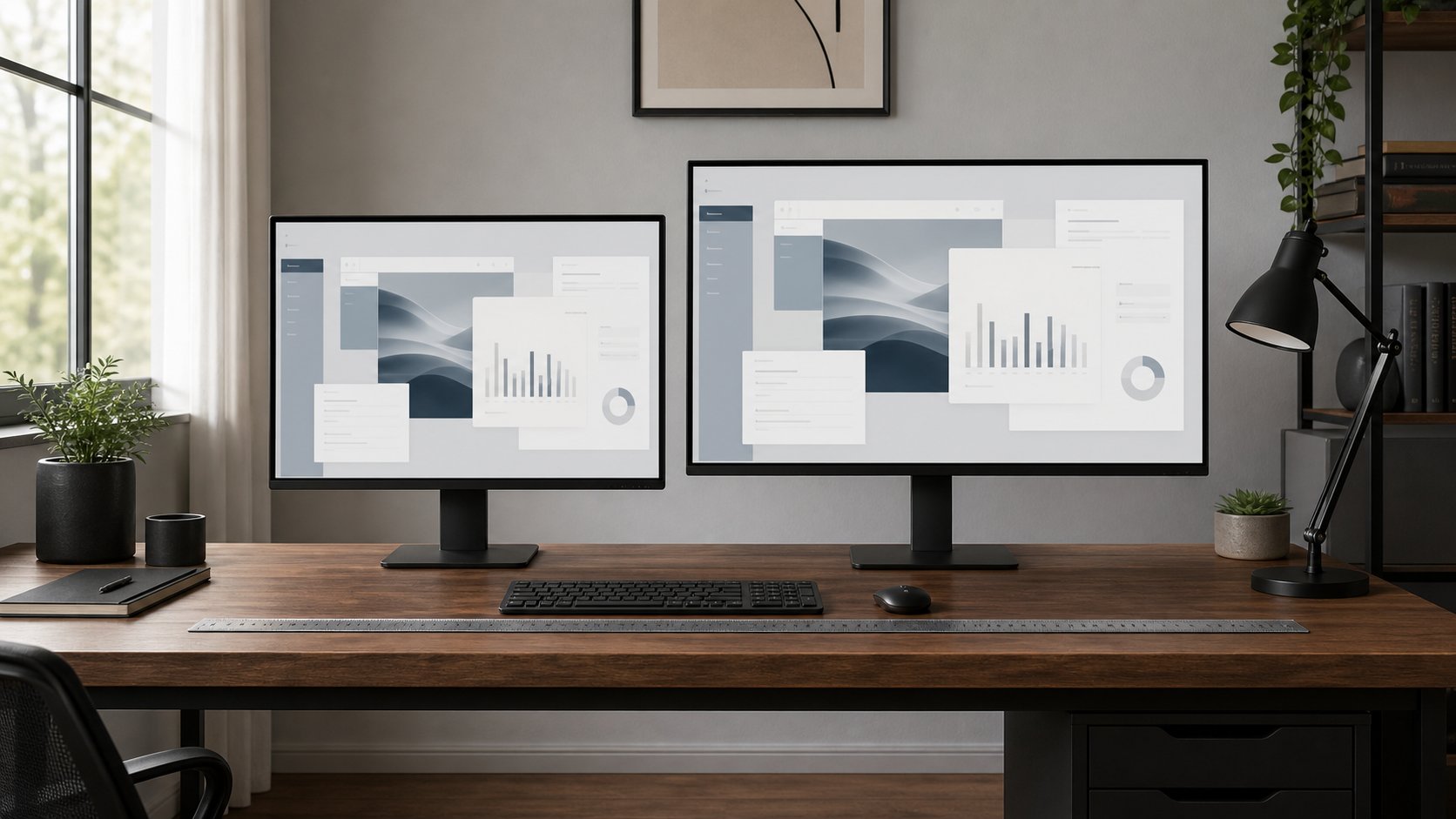
A 27-inch monitor is the best default for most remote workers because it fits ordinary desks, works well at 1440p or 4K and requires less head movement. A 32-inch monitor is better when you need larger 4K content, sit farther away or use several windows without adding a second display.
Resolution matters as much as diagonal size. A 32-inch 1080p screen has visibly lower pixel density than a 27-inch 1440p or 4K display.
Quick comparison
| Feature | 27 inch | 32 inch |
|---|---|---|
| Typical desk fit | Easier | Needs more width and depth |
| Good general resolution | 2560 × 1440 | 3840 × 2160 |
| Approx. width, 16:9 panel | 23.5 in / 60 cm | 27.9 in / 71 cm |
| Head movement | Lower | More at close distance |
| Window capacity | Two comfortable columns | Two or three larger regions |
| 4K scaling | Often 125–175% | Often 100–150% |
| Best use | General office, writing, calls | Large spreadsheets, creative work, farther viewing |
| Mount demands | Moderate | More weight and leverage |
Physical dimensions vary with bezel and stand.
Pixel density comparison
| Size and resolution | Approx. pixels per inch | Practical impression |
|---|---|---|
| 27-inch 1080p | 82 PPI | Large pixels; limited workspace |
| 27-inch 1440p | 109 PPI | Strong general balance |
| 27-inch 4K | 163 PPI | Very sharp; scaling usually needed |
| 32-inch 1080p | 69 PPI | Coarse at desk distance |
| 32-inch 1440p | 92 PPI | Usable but less crisp |
| 32-inch 4K | 138 PPI | Sharp with generous workspace |
Pixel density does not determine quality alone, but it explains why the same resolution looks different across sizes.
Choose 27 inches when
- Desk depth is 60–75 cm.
- Work is mainly writing, coding, calls and browser research.
- One centered display should remain easy to scan.
- 1440p fits the budget.
- A second screen may be added later.
- Monitor-arm weight capacity is limited.
- You sit around an arm’s length away.
A 27-inch 1440p monitor is a practical baseline. A 4K model improves text and image detail when the computer and operating-system scaling support it well.
Choose 32 inches when
- The desk is deep enough for greater viewing distance.
- 4K resolution fits the budget.
- Large spreadsheets, timelines or design canvases need space.
- You prefer larger interface elements from farther away.
- One screen should replace two smaller screens.
- The stand or arm safely supports the size and weight.
At close range, a 32-inch panel can require more head and eye movement. Move it back before shrinking text.
Why 1080p is weak at larger sizes
Full HD contains the same 1920 × 1080 pixels whether the screen is 21, 27 or 32 inches. Enlarging the panel spreads those pixels farther apart.
A 27-inch 1080p monitor can be acceptable for larger text, video calls or budget use, but it provides less workspace than 1440p. At 32 inches, many users see obvious pixel structure at desk distance.
Do not buy by diagonal and refresh rate while ignoring resolution.
1440p: the 27-inch sweet spot
At 27 inches, 2560 × 1440 provides approximately 109 PPI and more workspace than 1080p without requiring aggressive scaling.
It works well for:
- Two application columns
- Coding
- Writing with reference material
- General design
- Email and dashboards
A laptop must support the resolution and desired refresh rate through the chosen port or dock.
4K: sharp text and scaling
4K provides 3840 × 2160 pixels. At 27 inches, most users increase scaling so interface elements remain readable. At 32 inches, 4K may use lower scaling while retaining substantial workspace.
Check:
- Operating-system scaling
- Remote desktop behavior
- Legacy application support
- Multiple-monitor scaling differences
- GPU and dock bandwidth
- Text size at viewing distance
Running 4K at 100 percent on a 27-inch screen just to claim more workspace can produce text too small for comfortable use.
Viewing distance
OSHA’s monitor guidance gives a broad preferred viewing range of about 20–40 inches, with text readable while the head and torso remain supported.
Use comfort rather than a fixed arm-length rule:
- Sit with the back supported.
- Increase text to a readable size.
- Move the monitor until the entire screen is easy to scan.
- Keep the top around eye level or slightly below.
- Recheck glare.
Larger screens usually sit farther away.
Desk depth
Measure from the front edge used by the keyboard to the front surface of the display.
A deep monitor stand can consume 20–30 cm behind the panel. A monitor arm may recover surface depth but needs wall clearance and a suitable desktop.
For a 32-inch screen, a 75–80 cm desk is often more flexible than a shallow 55–60 cm desk, though stand design and eyesight vary.
Panel type
IPS
Strong general choice for office use, with wide viewing angles and consistent color.
VA
Higher contrast and deeper dark tones, but motion and viewing-angle performance vary.
OLED
Excellent contrast and response, with higher cost and potential burn-in considerations for static interfaces. Warranty terms and pixel-care features matter.
Mini-LED backlight
Can improve HDR brightness and local contrast but adds cost and possible blooming around high-contrast text.
For ordinary remote work, a good IPS monitor remains a safe default.
Refresh rate
60 Hz is adequate for standard office tasks. A 75–120 Hz display can make scrolling and pointer movement feel smoother.
Higher refresh requires more bandwidth and may reduce dock display capacity. Prioritize resolution, clarity, connection and stand adjustment before 240 Hz gaming specifications.
USB-C monitor or separate dock?
A USB-C monitor can combine video, charging and USB peripherals through one cable.
Check:
- Charging wattage
- USB data speed
- Ethernet availability
- DisplayPort Alt Mode
- Daisy-chain support by OS
- Cable specification
- Wake and sleep behavior
A monitor advertising USB-C may provide only modest laptop charging. Compare against the computer’s required adapter.
Webcam and speakers
Built-in cameras simplify calls but can limit angle and image quality. Integrated speakers save desk space but rarely replace a headset in a shared environment.
Treat these as convenience features. The display panel and connection should remain useful after the webcam ages.
Flat vs curved
A gentle curve can keep the edges of a wide 32-inch or ultrawide display at a more consistent distance.
For documents and design, verify that the curve does not distort judgment or make wall placement difficult. Flat panels are easier to share and pair.
Curve radius affects monitor-arm depth and weight compatibility.
One 32-inch vs two 27-inch monitors
One 32-inch
Advantages: no central bezel, fewer cables and centered work.
Trade-offs: less physical separation and one screen failure removes the whole workspace.
Two 27-inch
Advantages: dedicated full-screen applications and flexible inputs.
Trade-offs: greater width, more head movement and higher GPU bandwidth.
Use the multiple-monitor guide for three and four-screen layouts.
Stand adjustment
Look for:
- Height
- Tilt
- Swivel
- Rotation
- Stable base
- Reasonable footprint
- VESA compatibility
A cheap panel with a fixed stand may require a riser or arm, changing the total cost.
If using an arm, verify weight without stand and VESA pattern using the monitor-arm guide.
Color and brightness
For general work:
- Use an sRGB mode where appropriate.
- Match brightness to the room.
- Avoid vivid modes that oversaturate documents.
- Control reflections at the window.
- Choose a matte or glossy finish deliberately.
Color-critical work requires calibration, gamut and uniformity beyond size.
Compatibility checklist
- Laptop maximum external resolution
- Number of supported displays
- HDMI or DisplayPort version
- USB-C video support
- Dock bandwidth
- Refresh-rate combination
- HDCP requirements
- Included cable
- Operating-system scaling
- Employer-approved peripherals
A dock with two ports may not drive two 4K displays at the desired refresh rate.
Common mistakes
Buying 32-inch 1080p for size alone. Pixel density is low.
Using tiny text on 4K. Scale for readability.
Ignoring stand depth. The panel moves too close.
Buying a heavy monitor before checking the arm. Weight and leverage matter.
Chasing refresh rate through a limited dock. Bandwidth is shared.
Putting a large screen too high. The top should not force neck extension.
Assuming one size fits eyesight. Test readable distance.
Final recommendation
Choose a 27-inch 1440p monitor for the best general balance of clarity, cost and desk fit. Choose 27-inch 4K for especially sharp text and image work with scaling. Choose 32-inch 4K when the desk is deep, windows need more room and one large canvas is preferable to multiple screens.
Avoid 32-inch 1080p for close office work unless large pixels serve a specific accessibility need. Measure depth, check computer bandwidth and buy enough resolution for the screen size.