Best USB-C Hubs for a Home Office: 8 Picks by Use Case
Compare eight strong USB-C hubs and docks for travel, Ethernet, 4K displays, dual monitors and permanent desks—plus the compatibility checks that prevent costly mistakes.
What to know first
- Buy for your workflow and connection needs, not headline specifications.
- Reliability and warranty often matter more than a minor speed gain.
- Check compatibility before committing to an accessory.
The best USB-C hub for a home office is the one that matches your laptop’s actual video, charging and data capabilities. The connector shape alone does not guarantee dual monitors, 100-watt charging or high-speed storage.
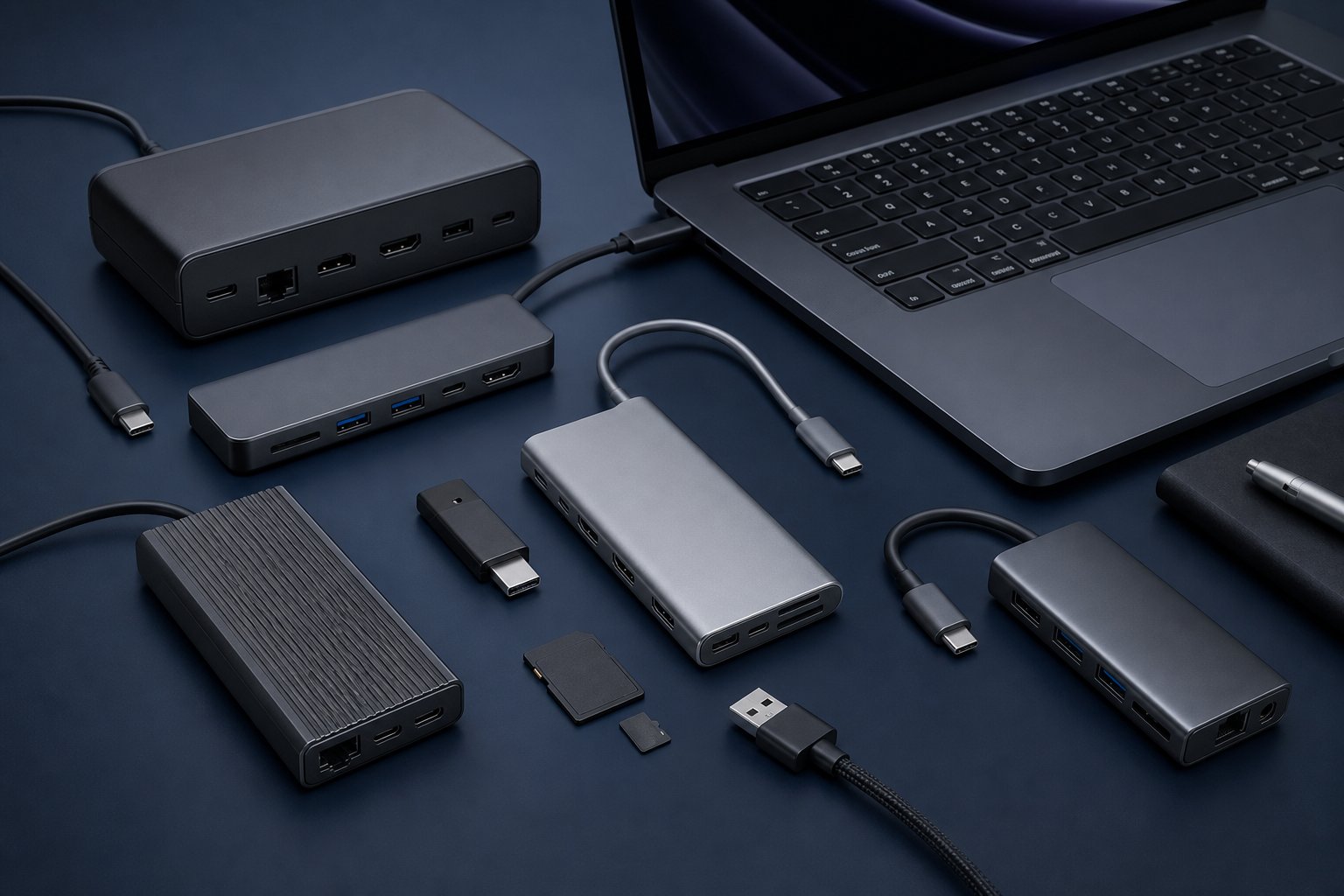
Our eight picks cover common workflows from travel to a permanent multi-monitor desk. Specifications and regional model names change, so verify the exact manufacturer’s page, laptop support document and included power supply before ordering.
Quick picks
| Use case | Pick | Key advantage |
|---|---|---|
| Best balanced portable hub | Anker 555 8-in-1 | Useful port mix with 4K 60 Hz output |
| Best value with Ethernet | UGREEN Revodok Pro 109 | Broad connectivity at a moderate price |
| Best slim Mac-oriented hub | Satechi Multiport Adapter V3 | Compact design and fast modern ports |
| Best budget essentials | Anker 332 5-in-1 | HDMI, data and pass-through power |
| Best one-cable desk hub | Plugable 9-in-1 USBC-9IN1E | Strong desk port mix and high power budget |
| Best dual-monitor workaround | Plugable DisplayLink dock | Additional display support on compatible systems |
| Best premium permanent dock | CalDigit TS4 | Many ports and strong laptop charging |
| Best Thunderbolt 5 expansion | CalDigit Element 5 Hub | High-speed downstream Thunderbolt ports |
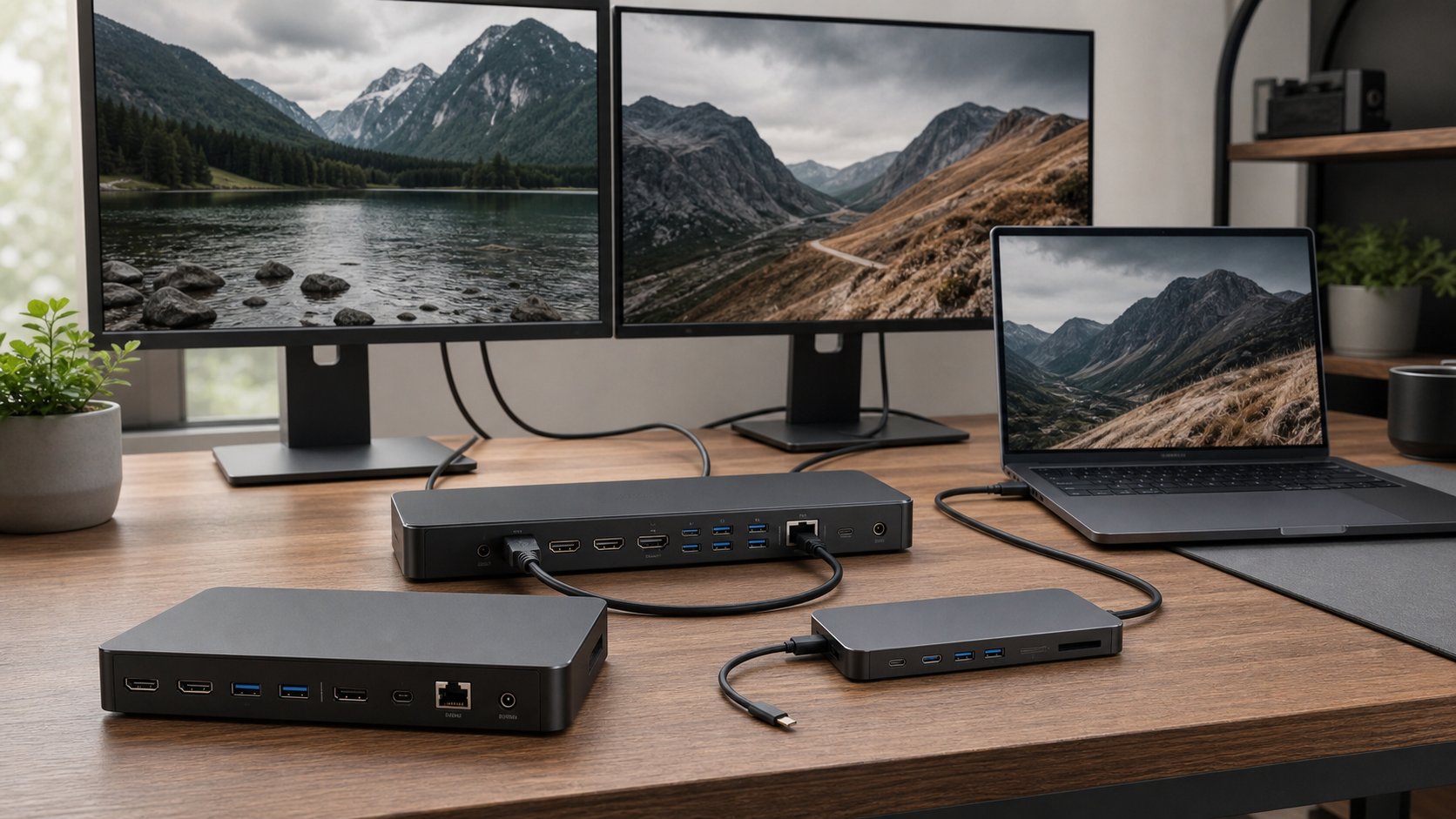
A hub is portable and may rely on laptop power. A dock is usually larger, powered and designed to remain on a desk. Product naming often blurs the difference.
1. Anker 555 8-in-1: best balanced portable hub
The Anker 555 combines HDMI, Ethernet, USB-A, USB-C data, card readers and pass-through charging in a travel-friendly body.
Best for: general remote workers who need one display, wired network and mixed accessories.
Strengths: balanced ports, 10 Gbps-class data on selected connections and 4K 60 Hz display support with a compatible host.
Check before buying: the laptop must support DisplayPort Alt Mode through USB-C. Pass-through power is lower than the charger input because the hub consumes some power.
2. UGREEN Revodok Pro 109: best value with Ethernet
The Revodok Pro 109 offers a broad port set including Ethernet, HDMI, USB data and card readers.
Best for: a worker who carries one hub between home and another location.
Strengths: multiple fast data ports and practical network support.
Check: exact model numbers within the Revodok range can look similar but provide different display and data specifications. Confirm 4K refresh rate and power delivery on the listing for your region.
3. Satechi Multiport Adapter V3: best slim Mac-oriented option
Satechi’s current V3 adapter emphasizes fast USB-C data, modern HDMI capability and a compact aluminum design.
Best for: MacBook Air or thin-laptop users with one external screen and mostly USB-C accessories.
Strengths: portable form, modern port mix and restrained cable footprint.
Check: Mac external-display limits come from the exact computer, not the number of ports on the hub. One hub cannot automatically create support for more displays than the Mac permits.
4. Anker 332 5-in-1: best budget essentials
The 332 covers a simple workflow: one HDMI display, a few USB devices and pass-through charging.
Best for: presentations, travel and a laptop that only needs occasional expansion.
Strengths: small size and lower cost.
Trade-offs: budget models may limit HDMI to 4K at 30 Hz and data to 5 Gbps. That is adequate for documents and peripherals but less comfortable for smooth desktop motion or fast external SSD work.
5. Plugable 9-in-1 USBC-9IN1E: best one-cable desk hub
Plugable’s 9-in-1 option is designed for a desk that needs Ethernet, display output, card access and substantial pass-through power without a large Thunderbolt dock.
Best for: Windows and compatible USB-C laptops using one 4K screen and wired accessories.
Strengths: desk-oriented connectivity and higher charging headroom than many small hubs.
Check: whether the included or required charger is part of the package. A hub advertised for high pass-through power cannot supply that power without a suitable source.
6. Plugable DisplayLink dock: best for compatible dual-monitor expansion
DisplayLink docks compress and transmit display data through USB with software. They can add monitors to systems whose native outputs are limited.
Best for: office applications on an approved system where two external displays are required.
Strengths: flexible display count across many computers.
Trade-offs: requires drivers, adds processing and can have limitations with protected video, gaming, color-critical work or managed corporate devices.
Ask IT before installing DisplayLink software. Use native display output for latency-sensitive or graphics-heavy work where possible.
7. CalDigit TS4: best premium permanent dock
The TS4 provides a large set of Thunderbolt, USB, network, audio and card connections with strong laptop charging.
Best for: a permanent desk with fast storage, wired network, audio and multiple peripherals.
Strengths: extensive port selection, powered operation and high-speed downstream connectivity.
Trade-offs: high cost and more capability than a basic office workflow needs. Display support still varies by operating system and computer.
A large powered dock should have ventilation and enough cable space. Do not bury it inside a closed cable box.
8. CalDigit Element 5 Hub: best Thunderbolt 5 expansion
The Element 5 focuses on high-speed Thunderbolt expansion, providing downstream Thunderbolt and USB ports rather than every legacy connector.
Best for: newer Thunderbolt 5 laptops, fast external storage and high-resolution display workflows.
Strengths: very high bandwidth and flexible Thunderbolt device chains.
Trade-offs: needs adapters for Ethernet, card readers or dedicated display connectors. Older laptops may work at lower standards but cannot gain Thunderbolt 5 performance.
Buy this for a confirmed high-bandwidth requirement, not to make an ordinary keyboard faster.
USB-C compatibility checklist
Before choosing any hub, answer these questions.
Does the USB-C port support video?
Look for DisplayPort Alt Mode, USB4 or Thunderbolt in the laptop documentation. A USB-C charging or data port may not output a display.
How many external displays does the computer support?
Check the exact processor and model. Operating system, lid position, resolution and refresh rate can change the limit.
How much power does the laptop require?
A hub consumes part of the input. A 100 W charger connected to a hub may provide 85 W or 90 W to the laptop. High-performance laptops may still need their original charger.
What data speed do your devices need?
Keyboard and mouse work on basic USB. Fast SSDs, video interfaces and capture devices benefit from dedicated 10, 20, 40 or 80 Gbps connections.
All ports on a hub share the host connection. The printed maximum is not available to every port simultaneously.
Do you need Ethernet?
Gigabit Ethernet is enough for many home connections. 2.5 GbE matters only when the router, switch, cabling, internet or local server also supports it.
Hub vs dock vs monitor dock
Portable hub
Choose when you travel, need a few ports and already carry a charger. It is compact but can run warm and places cable weight near the laptop.
Powered dock
Choose for a permanent desk, many peripherals and one-cable charging. A dock costs more but offers stable cable routing and its own power supply.
Monitor with built-in USB-C hub
A monitor can provide display, charging, USB and sometimes Ethernet through one cable. This reduces boxes but ties connectivity to the screen and its power-delivery limit.
Use the dual-monitor setup guide to plan display count and the laptop buying guide to verify host capabilities.
Common USB-C hub problems
Monitor shows 4K at only 30 Hz
Verify laptop output, hub specification, cable and monitor input. Some hubs share video bandwidth with high-speed USB data.
Laptop says slow charger
Use the correct charger and a cable rated for the power. Check the hub’s delivered output, not only accepted input.
External drive disconnects
Avoid exceeding the hub’s power budget. Connect demanding storage to a powered dock or dedicated high-speed port. Replace an under-specified cable.
Ethernet disappears after sleep
Update approved firmware and drivers, test another port and check power-saving settings. Corporate network tools can also affect behavior.
Hub becomes warm
Some warmth is normal during charging and data transfer. Keep it ventilated. Stop use if it becomes dangerously hot, smells unusual, deforms or disconnects repeatedly.
Final recommendation
Choose the Anker 555 for a balanced portable setup, UGREEN Revodok Pro 109 for value and Ethernet, Plugable 9-in-1 for a stronger one-cable desk and CalDigit TS4 when a permanent professional dock justifies the cost.
Compatibility comes first. List the displays, charging wattage, storage speed and network connection you need, then verify each against the laptop and hub documentation. The hub with the most ports is not the best one if the computer cannot drive them.