How to Set Up Dual Monitors for Maximum Productivity
Connect, arrange and position two monitors correctly on Windows or macOS, with practical advice for cables, scaling, ergonomics and common display problems.
What to know first
- Start with the work you do, not the look you want.
- Protect clearances before choosing furniture.
- Spend first on items you touch for hours each day.
A good dual monitor setup gives each screen a role, keeps the primary display directly in front of you and lets the pointer cross between screens without a visual jump. The hardware is only half the setup. Cable capability, display settings, scaling and physical alignment determine whether two monitors reduce window switching or create a wider field of distraction.
This guide covers Windows and macOS, laptops and desktops, matched and mixed displays, and the ergonomic decisions that matter after both screens turn on.
Before buying a second monitor
Check four things.
1. Confirm the computer’s display support
Look up the exact computer model, processor and graphics configuration. Confirm:
- Number of external displays supported
- Maximum resolution and refresh rate for each
- Whether support changes with the laptop lid open or closed
- Required ports or dock specifications
- Operating-system requirements
Two USB-C ports do not automatically mean two independent display outputs. Some laptops route both through the same display capability. Some docks use DisplayLink software rather than native display output, which can affect installation, protected content and managed-device policies.
2. Decide whether the monitors need to match
Matched screens provide consistent size, bezels, resolution and color. They are easiest to align.
Mixed screens can work well when each has a different role. A 27-inch primary monitor beside a vertical 24-inch document screen is often more useful than two displays chosen only for symmetry.
3. Check the available desk depth
A second monitor adds width, but distance matters too. Large screens on deep supplied stands can push the keyboard forward. Monitor arms may recover space, provided the desk can support them.
4. Inventory the ports and cables
Record the ports on the computer, dock and each monitor. HDMI, DisplayPort, USB-C and Thunderbolt connectors may support different resolutions and refresh rates depending on version and device.
Use cables rated for the intended signal. An adapter that produces an image may still limit resolution or refresh rate.
Choose the right dual-monitor layout
Equal use: center the seam
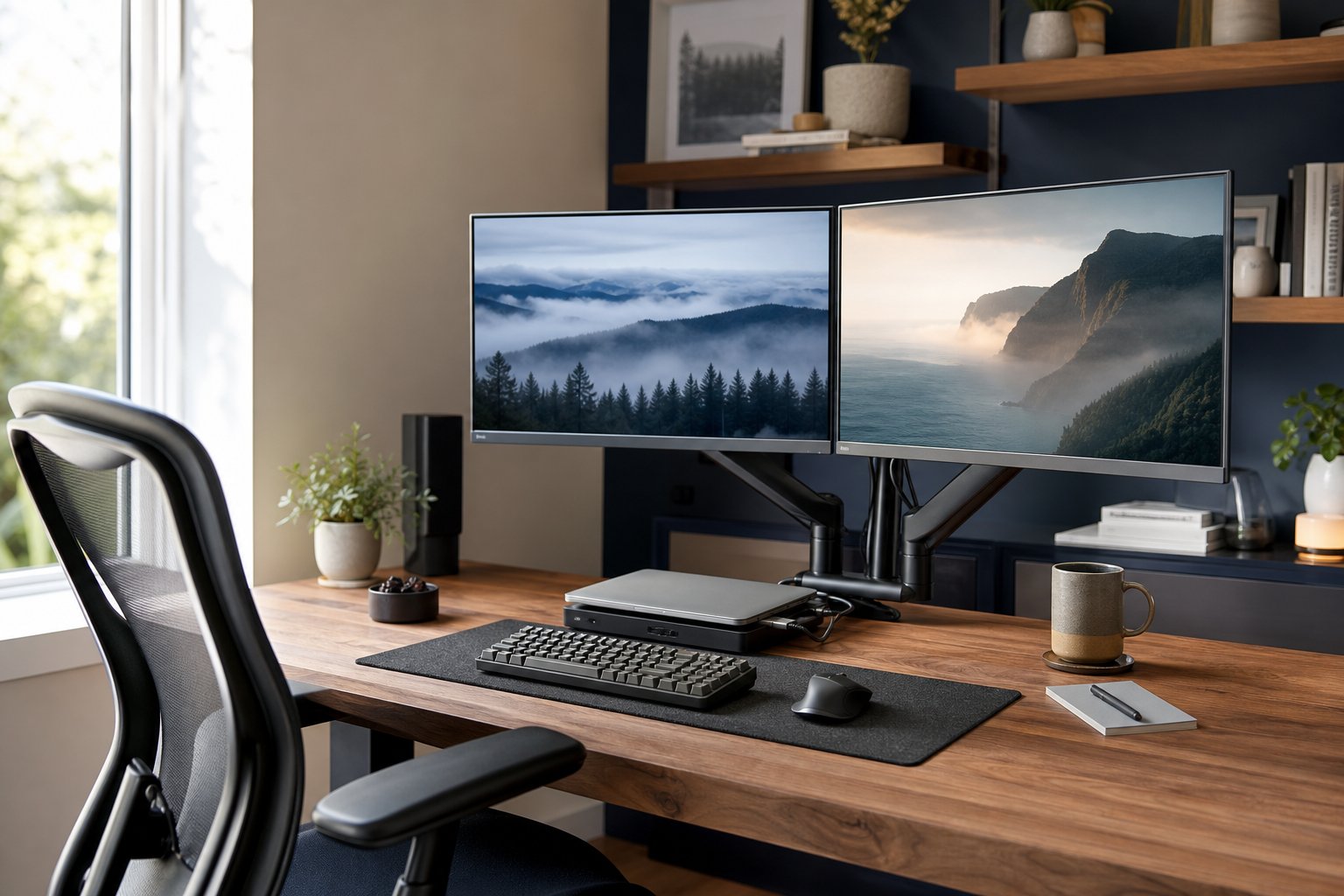
Place two equal screens side by side with the inner edges meeting directly ahead. Angle both inward slightly.
This works when you divide time roughly evenly: document on one screen, analysis on the other.
Primary and secondary: center the primary
Place the main monitor directly ahead. Put the second close beside it, angled toward you.
This is the better layout when one screen holds most active work and the second displays reference, communication or preview content. Do not center the gap simply because it looks symmetrical.
Vertical secondary display
Rotate the secondary monitor for long documents, code, chat or a reference page. Confirm the stand supports rotation and change orientation in display settings.
A vertical screen can feel very tall. Align its center or upper working area with the primary display rather than automatically matching bottom edges.
Laptop plus external monitor
Treat the external monitor as primary when it handles most work. Raise the laptop on a stand beside it and use an external keyboard and mouse.
If the laptop remains low, use it for occasional controls rather than content that requires constant viewing.
Connect two monitors safely
- Shut down or sleep the computer if the manufacturer recommends it for the hardware connection.
- Connect each monitor to power.
- Connect display cables directly or through a compatible dock.
- Select the correct input on each monitor.
- Wake the computer and wait for detection.
- Open display settings and choose extended desktop mode.
- Set the primary display, resolution, scaling and arrangement.
Avoid forcing connectors. DisplayPort plugs may include a latch. Support heavy adapters so they do not hang from a laptop port.
If the dock supplies laptop power, confirm its output meets the computer’s requirement under load.
Configure dual monitors in Windows
Open Settings > System > Display. Use Identify to show a number on each screen. Drag the display rectangles until they match the physical arrangement, then apply.
The Microsoft multiple-monitor guide recommends testing the arrangement by moving the pointer between displays.
Choose Extend these displays rather than Duplicate when you want a larger desktop. You can also press Windows key + P to switch between common display modes.
For each monitor:
- Select its native or recommended resolution.
- Choose comfortable scaling.
- Verify orientation.
- Set an appropriate refresh rate under advanced display settings.
- Choose the monitor used for the main task as the main display.
Windows can remember window locations based on monitor connection. Enable the option if your laptop repeatedly docks and undocks.
Configure dual monitors on macOS
Open System Settings > Displays. Select Arrange or the current arrangement control, then drag displays to match their physical positions.
Choose the main display by moving the menu-bar indicator or using the main-display setting provided by the current macOS version. Select extended display rather than mirroring.
Review scaling for each screen. macOS may present options as larger text or more space rather than a raw percentage.
If a monitor does not appear, hold the Option key where applicable to reveal display-detection controls, reconnect the cable and verify hardware support for the exact Mac model.
Set resolution and scaling correctly
Use each monitor’s native resolution whenever possible. Lowering resolution can make text less sharp. Increase interface scaling instead.
Mixed pixel densities create a common issue: a window looks larger on one display than the other. Choose scaling that makes text comfortable on each screen, even if window size changes while crossing between them.
For color-sensitive work, calibrate both displays and use one designated screen for final decisions. Two different panel types may never match perfectly.
Position the monitors ergonomically
Begin with the chair and keyboard. Then:
- Center the primary screen on your torso.
- Place it at a comfortable reading distance, commonly around an arm’s length as a starting point.
- Set the top active area at or slightly below eye level.
- Bring the second monitor close enough that the inner bezels form one visual area.
- Angle the second toward you.
- Keep frequently used windows near the center.
If use is equal, center the join and turn the chair slightly toward whichever screen is active. Move the eyes first and the head when needed; do not hold a long neck rotation while the torso stays fixed.
Large monitors usually need more distance. Increase text size before leaning forward.
Should you use a dual monitor arm?
A dual arm can reclaim desk area, align displays and change viewing distance. It is not automatically better than two height-adjustable stands.
Check:
- Total and per-arm weight limits
- Minimum monitor weight for gas springs
- VESA mounting pattern
- Desk thickness and material
- Clamp clearance behind drawers or rails
- Space between desk and wall
- Arm reach at the desired screen depth
Two independent arms offer more flexibility with mixed screen sizes. One crossbar arm keeps matched screens aligned but can limit depth and angle adjustments.
Manage dual-monitor cables
Route cables from each screen along the monitor arm or stand, leaving a small service loop at moving joints. Group both display cables toward the dock or computer and both power cables toward the under-desk tray.
Label each end LEFT and RIGHT. When troubleshooting, you can swap one connection without guessing.
For a standing desk, mount the power strip and dock beneath the moving desktop. Test at full standing and seated heights.
Give each screen a job
Two displays help when they reduce a repeated transition. Try one of these patterns:
| Primary screen | Secondary screen |
|---|---|
| Writing or design | Research and source material |
| Code editor | Preview, documentation or logs |
| Spreadsheet | Dashboard or reference data |
| Presentation | Notes and participant view |
| Client call | Shared document or agenda |
Avoid keeping email and chat permanently visible when focused work matters. The second monitor can increase interruption as easily as productivity.
Use full-screen focus on the primary display and open communication only during response windows.
Fix common dual-monitor problems
The second monitor is not detected
- Verify power and selected monitor input.
- Reseat both ends of the cable.
- Test the monitor and cable individually.
- Use operating-system detect controls.
- Update approved graphics and dock drivers.
- Confirm the computer supports the display count and resolution.
- Remove unnecessary adapters during testing.
One monitor is blurry
Set its native resolution and review scaling. Replace an under-specified adapter or cable. Disable unsupported signal conversions.
The pointer jumps vertically
Rearrange display rectangles so their shared edges match physical height. Fine-tune until the pointer crosses at the same visual point.
Windows open off-screen
Reconnect the missing display or use operating-system window-move shortcuts. Enable remembered window positions where supported.
Different brightness and color
Disable automatic brightness during matching, choose similar color modes and manually align brightness. Use hardware calibration for color-critical work.
The laptop slows down
High-resolution external displays add graphics workload. Reduce unnecessary refresh rate or resolution only after verifying cooling, drivers, power mode and dock capability.
Dual monitors vs one ultrawide
Choose dual monitors when you want clear application separation, flexible orientation, easy screen sharing and the ability to replace one display.
Choose an ultrawide when you prefer one uninterrupted canvas, one stand and fewer cables. Window management becomes more important, and sharing one application can require extra care.
Neither is inherently more productive. Match the display system to the transitions your work requires.
Complete the display setup
After both screens work, use the correct monitor height guide to refine viewing position and the desk cable management guide to route the extra power and display cables safely.
Final setup checklist
- The computer officially supports two external displays.
- Each cable supports the required resolution and refresh rate.
- The primary monitor is centered.
- The virtual layout matches the physical layout.
- Native resolution and comfortable scaling are selected.
- The mouse crosses naturally between screens.
- Cables have slack and avoid moving parts.
- The secondary screen has a defined role.
- Communication does not remain visible by default during focus work.
A dual monitor setup works best when the second screen removes one repeated source of friction. Connect it with verified hardware, position the main work directly ahead and design the digital layout as carefully as the physical one.