How to Sit Properly at a Desk: A Practical Posture Guide
Adjust your chair, desk, monitor and input devices in the right order for a supported starting posture—and learn why movement matters more than sitting perfectly.
What to know first
- Neutral, supported positions matter more than perfect posture.
- Movement throughout the day is part of the setup.
- Persistent pain deserves advice from a qualified clinician.
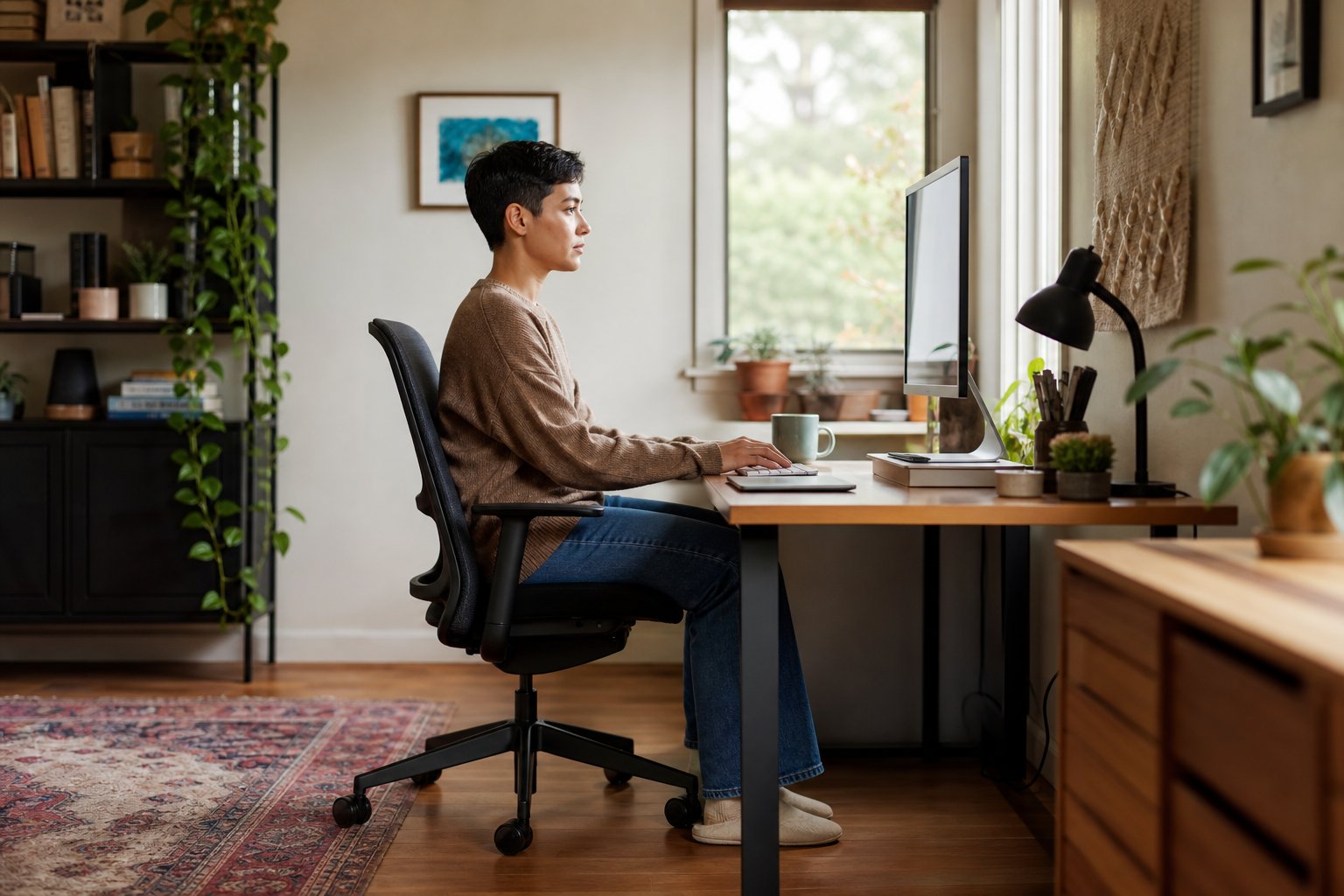
To sit properly at a desk, begin with stable feet, bring the keyboard and mouse close to relaxed arms, support your back and place the screen where you can read it without leaning. Then change position regularly. Proper desk posture is a supported starting point—not a pose to hold all day.
This guide is general educational information, not medical advice. Seek guidance from a qualified healthcare professional for severe, persistent or worsening pain, numbness, weakness, symptoms after an injury or any concern specific to your health.
The quick posture checklist
Use this as a starting position:
- Feet rest on the floor or a stable footrest.
- Hips are level with or slightly higher than the knees.
- The backrest supports the lower and mid back.
- Shoulders feel relaxed rather than lifted.
- Elbows remain close to the torso.
- Forearms are roughly level with the keyboard.
- Wrists continue the line of the forearms.
- The mouse sits beside the keyboard.
- The primary screen is directly ahead.
- Text is readable without leaning toward the display.
These are adjustable relationships, not exact angles every body must reproduce. The Health and Safety Executive’s display-screen guidance emphasizes workstation assessment, risk reduction and changes of activity—not one frozen posture.
Adjust your workstation in the right order
A common mistake is raising the monitor first, then discovering the chair and keyboard no longer work together. Adjust from the floor upward.
1. Support your feet
Sit back in the chair and place both feet on a firm surface. If the desk forces you to raise the chair until your feet hang, add a stable footrest.
The support should be wide enough to change foot position. Your heels do not need to remain glued to one spot. Avoid a small box that slides away or tips when you push against it.
2. Set chair height for the keyboard
Bring the chair close to the desk. Raise or lower it until you can use the keyboard with relaxed shoulders and elbows near the body.
At a fixed desk, this relationship often determines chair height more than the floor does. That is why the footrest comes first: it completes the support after the chair meets the work surface.
3. Check seat depth
Sit against the backrest. The seat should support most of the thighs without pressing into the back of the knees. A rough starting point is a small gap of two to four finger widths.
If the seat pan adjusts, shorten or lengthen it. If it is fixed and much too deep, a lumbar cushion may move you forward, but it also changes every other chair relationship. A chair that fits is better than layering several corrective cushions.
4. Adjust the backrest
Use the lumbar-height, back-height and recline controls if available. The backrest should meet you rather than forcing you into an exaggerated arch.
A slightly reclined position can distribute load and support reading or calls. Fully upright is not automatically healthier. Choose a supported position that allows the head to remain balanced and the arms to reach the work comfortably.
5. Set the armrests
Armrests can support the arms during pauses, but they should not lift the shoulders or block the chair from approaching the desk.
Lower, narrow or remove them if they force you to reach forward. When adjustable, place them just below relaxed elbow height so the shoulders can drop.
6. Position keyboard and mouse
Place the keyboard close enough that the elbows remain near the torso. Keep the mouse directly beside it at the same working height.
If you rarely use a number pad, a compact keyboard can bring the mouse closer. Increase pointer speed slightly if comfortable so large cursor movements require less arm travel.
Keep hands in line with the forearms instead of bending sharply up, down or sideways. A palm rest can support the heel of the hand during pauses, but pressing the wrists into it while typing may create contact pressure.
7. Place the monitor
Start with the screen directly ahead at about an arm’s length. Set the upper area of the display at or slightly below eye level, then adjust for screen size, vision and lenses.
Increase text scaling before moving the monitor so close that you lean back or lose desk space. People using progressive or bifocal lenses often prefer the screen lower to avoid tipping the head backward.
The OSHA computer workstation checklist similarly recommends a screen at or below eye level, a readable distance and a primary monitor directly in front.
What “neutral posture” really means
Neutral does not mean rigid or perfectly vertical. It means joints are near the middle of comfortable ranges and tissues are not held at an extreme for long periods.
A neutral seated position usually includes:
- Head balanced over the torso rather than projecting far forward
- Torso supported vertically or in a mild recline
- Upper arms near the body
- Hands generally aligned with forearms
- Hips and knees in a comfortable open position
- Feet supported
You will leave this position. That is normal. The workstation should make it easy to return without rebuilding the desk.
How long should you sit in one position?
There is no universal timer that fits every worker and task. The useful principle is to change before fatigue becomes pronounced.
The HSE recommends shorter, more frequent breaks or changes of activity rather than occasional long ones and notes that breaks should allow movement or a posture change. You do not need to stop productive work every few minutes; alternate the physical demands.
Try these natural cues:
- Stand when a meeting ends.
- Lean back for reading.
- Walk while making an audio-only personal call when safe and appropriate.
- Refill water between focus blocks.
- Move paper review away from the keyboard.
- Change between seated and standing work for selected tasks.
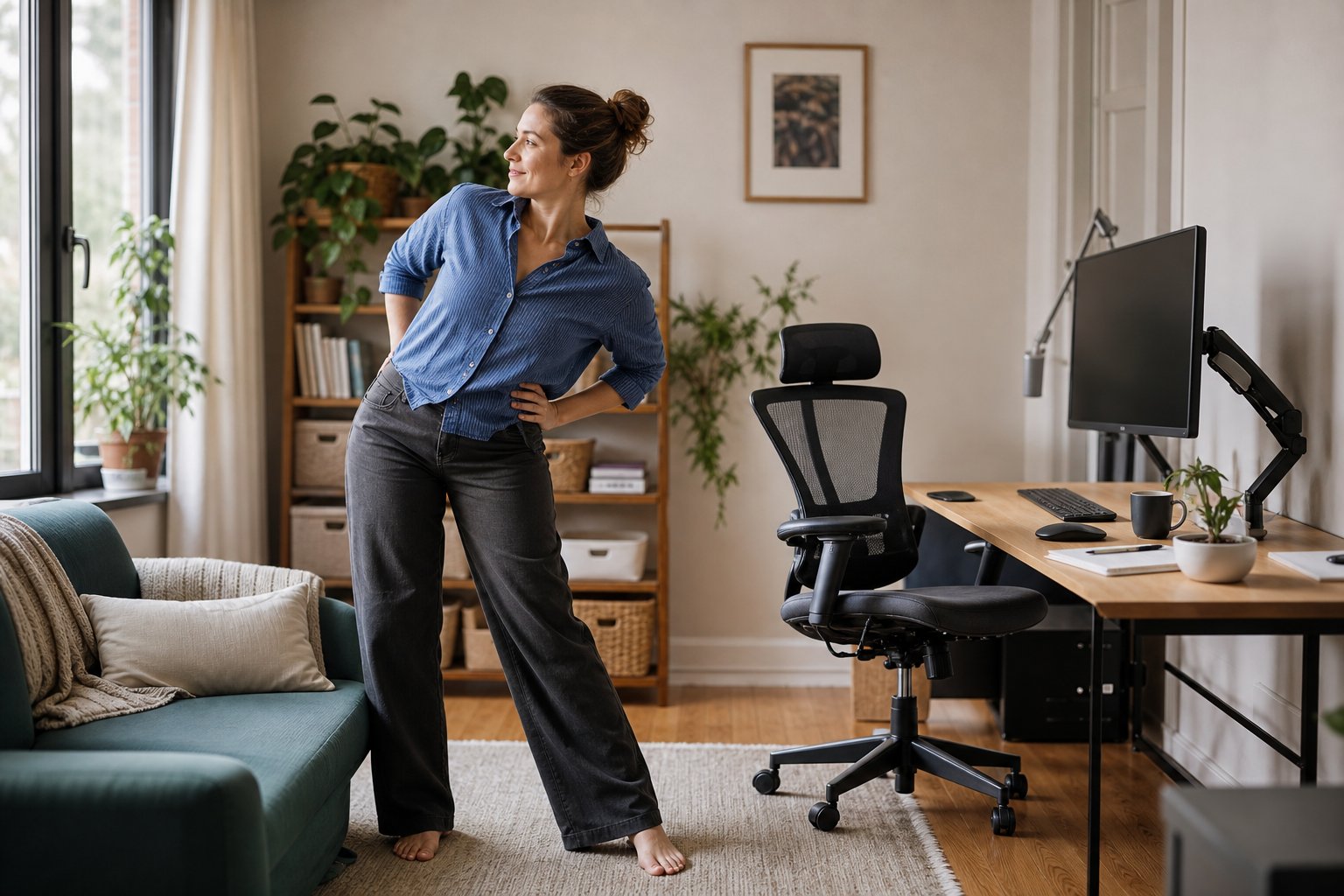
Movement is not a penalty for sitting incorrectly. It is part of a well-designed workday.
Fix common desk-posture problems
My shoulders rise while typing
The keyboard may be too high, the chair too low or the armrests may be lifting you. Raise the chair to meet the work surface, support the feet and lower obstructive armrests. A lower-profile keyboard may also help.
I lean toward the monitor
Increase text size and interface scaling. Check for glare, low contrast, an outdated vision prescription or a screen that sits too far away. Do not treat the symptom only by moving the chair forward if that makes the arms reach.
My neck turns toward one side
Center the display used most. If two monitors receive equal use, place them close together and center the join. If one is primary, keep it directly ahead and angle the secondary screen inward.
My wrists bend upward
Lower the keyboard surface, raise the chair with foot support or use a thinner keyboard. Retract keyboard feet unless their angle helps you maintain a straight line.
The desk edge presses into my arms
Move closer so the forearms do not rest on a sharp edge, use a rounded-edge desk or add appropriate edge padding. Do not place thick padding where it raises the working height substantially.
My feet do not reach the floor
Use a stable footrest sized for both feet. Do not lower the chair if that would make you raise the shoulders to type.
Laptop posture without an external monitor
A laptop joins the keyboard and screen with one hinge, so one component usually sits in a compromise position.
For sessions longer than a short email check, use one of these arrangements:
- Raise the laptop and use an external keyboard and mouse.
- Connect an external display and keep laptop input close.
- Keep the laptop low for typing, enlarge text and change position more often.
Do not place a laptop high on a stand and continue typing on its built-in keyboard for hours. That replaces a low screen with elevated arms.
Sitting with a standing desk
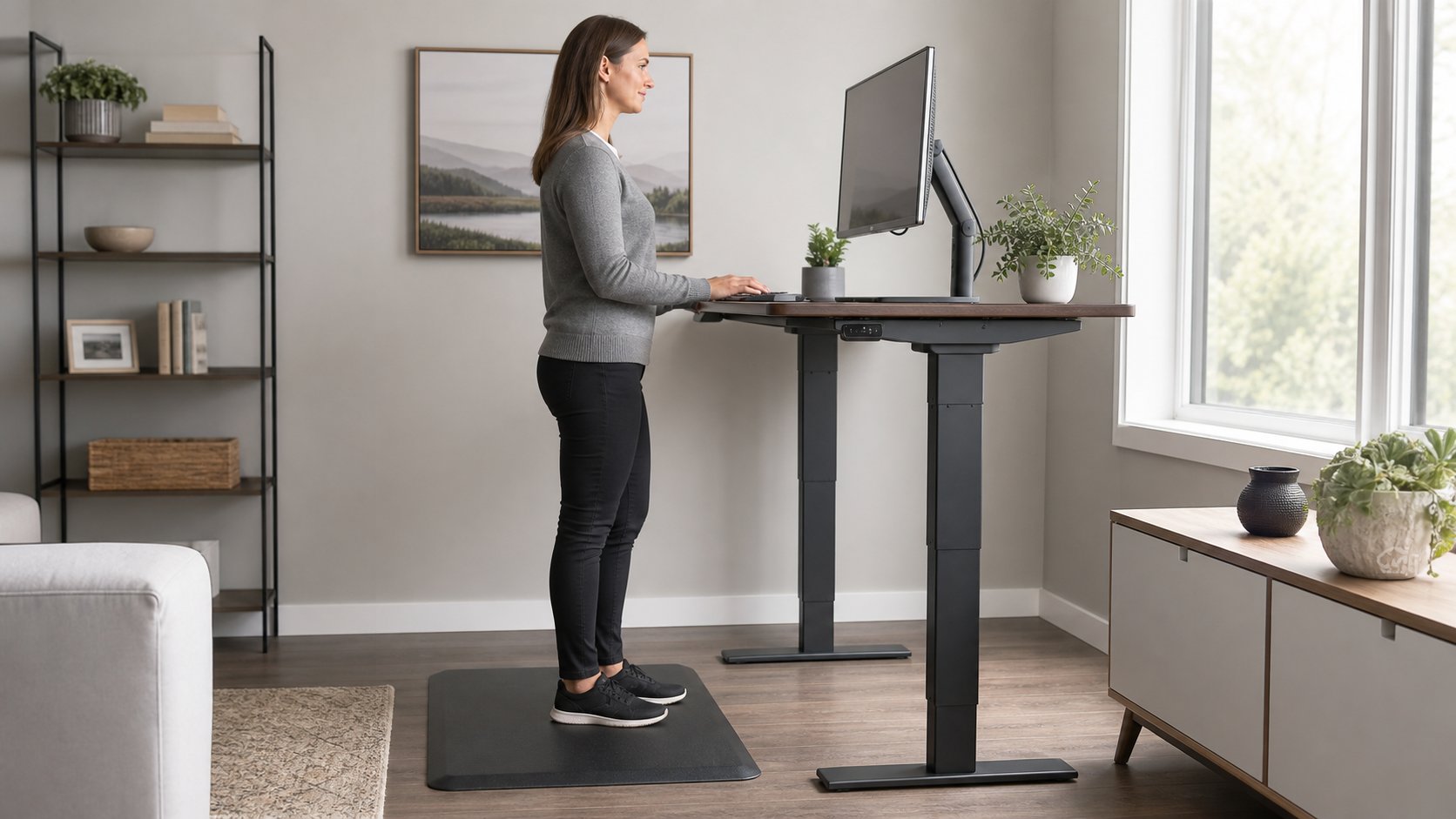
Set the seated position first. Save the desk height in a memory preset if available. Then set standing height separately with the keyboard near relaxed elbow level.
When returning to sitting, restore chair position, foot support and screen relationship. A sit-stand desk helps only when both positions fit.
Do you need a posture corrector?
A wearable brace or posture reminder does not fix screen distance, keyboard height or workload. Some people find reminders useful for short periods, but a device that holds the body rigid can become uncomfortable and should not substitute for professional assessment.
Start with the environment. Make the supported position easier and the strained reach unnecessary.
A five-minute self-audit
Ask someone to take a side photograph while you do ordinary work. Do not pose. Check:
- Are your feet supported?
- Does the backrest contact your back?
- Can the shoulders relax?
- Are the keyboard and mouse close?
- Is the screen readable without leaning?
- Can you change position without moving equipment?
Correct the clearest mismatch and work for several days before judging the result. Changing the chair, desk, monitor and mouse at once makes it difficult to learn what helped.
When the setup is not the whole problem
Discomfort can be influenced by workload, stress, sleep, previous injury, vision and health conditions. A workstation adjustment cannot make an unreasonable volume of uninterrupted work sustainable.
Report work-related symptoms through the appropriate workplace process. Seek clinical advice when symptoms persist or cause concern.
The practical takeaway
Sit with stable feet, a supported back, relaxed shoulders and input devices close to the body. Place the primary screen directly ahead at a readable distance. Then give yourself permission to move.
The proper way to sit at a desk is not a perfect silhouette. It is a supported position you can vary, leave and return to easily throughout the day.