Best Ergonomic Keyboards for Remote Work: 6 Layouts
Compare six curved, split and contoured ergonomic keyboards by separation, tenting, layout and learning curve, with a safe two-week method for changing your setup.
What to know first
- Neutral, supported positions matter more than perfect posture.
- Movement throughout the day is part of the setup.
- Persistent pain deserves advice from a qualified clinician.
The best ergonomic keyboard is the least disruptive design that improves your hand, forearm and shoulder position. Logitech ERGO K860 is an approachable one-piece split board for users who want a number pad. Logitech Wave Keys is smaller and cheaper. Kinesis Freestyle2 provides true separation, while Keychron Q11 and Kinesis Advantage360 suit people willing to accept a steeper mechanical-layout learning curve.
An ergonomic keyboard is not a treatment for an injury, and a dramatic shape is not automatically better. This guide compares current manufacturer specifications and adjustment concepts rather than claiming medical outcomes or hands-on durability testing.
Quick comparison
| Keyboard | Layout | Best for | Main compromise |
|---|---|---|---|
| Logitech ERGO K860 | One-piece curved split, full size | Easiest transition with number pad | Wide and no backlighting |
| Logitech Wave Keys | Compact wave, full key set | Budget and limited desk width | Fixed hand separation |
| Kensington KB675 EQ | Compact curved TKL | Multi-device office use | No separate halves |
| Kinesis Freestyle2 | Fully split low-profile membrane | Adjustable shoulder width | Tenting and palm supports may cost extra |
| Keychron Q11 | Fully split mechanical | Customization and familiar staggered keys | Wired, heavy and no built-in tenting |
| Kinesis Advantage360 | Contoured columnar split | Maximum positioning control | Cost and substantial relearning |
1. Logitech ERGO K860: best approachable full-size option
The Logitech ERGO K860 uses a curved split keyframe with an integrated number pad and layered wrist support. Logitech lists 0°, -4° and -7° palm-lift settings plus Bluetooth and Logi Bolt connectivity.
Best for: spreadsheet users moving from a conventional full-size keyboard.
Strengths: familiar key order, built-in palm support, negative-tilt options and switching among paired computers.
Trade-offs: at almost 18 inches wide, it keeps the mouse far from the typing center. The split angle and tenting are fixed, and there is no backlighting.
2. Logitech Wave Keys: best compact budget transition
The Logitech Wave Keys compresses a number pad and wave-shaped key field into a narrower body than the K860.
Best for: workers who want a gentle ergonomic change without giving up familiar shortcuts or wireless multi-device use.
Strengths: modest learning curve, integrated palm rest and reduced width compared with many full-size boards.
Trade-offs: the single frame cannot adapt to shoulder width. Users with broad shoulders or a strong need for tenting may outgrow it.
3. Kensington Pro Fit Ergo KB675 EQ: best compact office board
The Kensington KB675 EQ is a tenkeyless sculpted keyboard with two Bluetooth connections and a 2.4 GHz receiver. Kensington specifies Windows, macOS and ChromeOS support.
Best for: a shared office setup that needs a compact curved layout and several connections.
Strengths: no number pad, rechargeable battery and dedicated conferencing controls.
Trade-offs: fixed splay and tenting provide less personal adjustment than true split halves. Conferencing keys and software behavior can vary by operating system.
4. Kinesis Freestyle2: best adjustable low-profile split
The Kinesis Freestyle2 separates into two low-profile modules. Standard and extended-cable versions allow different spacing, while optional accessories add 5°, 10° or 15° tenting and palm supports.
Best for: changing shoulder-width separation without adopting a new key arrangement.
Strengths: familiar staggered layout, variable splay, quiet membrane switches and a low base.
Trade-offs: the full ergonomic setup may require optional accessories. PC and Mac models differ, and some hotkeys do not work in every operating system or remote session.
5. Keychron Q11: best customizable split mechanical board
The Keychron Q11 divides a staggered mechanical layout into independent halves and supports QMK/VIA customization.
Best for: experienced mechanical-keyboard users who want shoulder separation and remapping.
Strengths: hot-swappable switch options on relevant versions, programmable keys and independent positioning.
Trade-offs: it is wired, heavy and does not include a complete tenting system. Mechanical switch choice affects force and sound, while remapping adds setup complexity.
6. Kinesis Advantage360: best contoured premium option
The Kinesis Advantage360 uses separated concave key wells, columnar keys, thumb clusters and adjustable tenting.
Best for: committed touch typists prepared to retrain and customize a workstation around the keyboard.
Strengths: independent halves, integrated tenting and reduced reach to frequently used thumb keys.
Trade-offs: high price, unusual layout and a learning curve measured in weeks rather than hours. Pro and non-Pro versions differ in connectivity and programming.
Understand the three changes
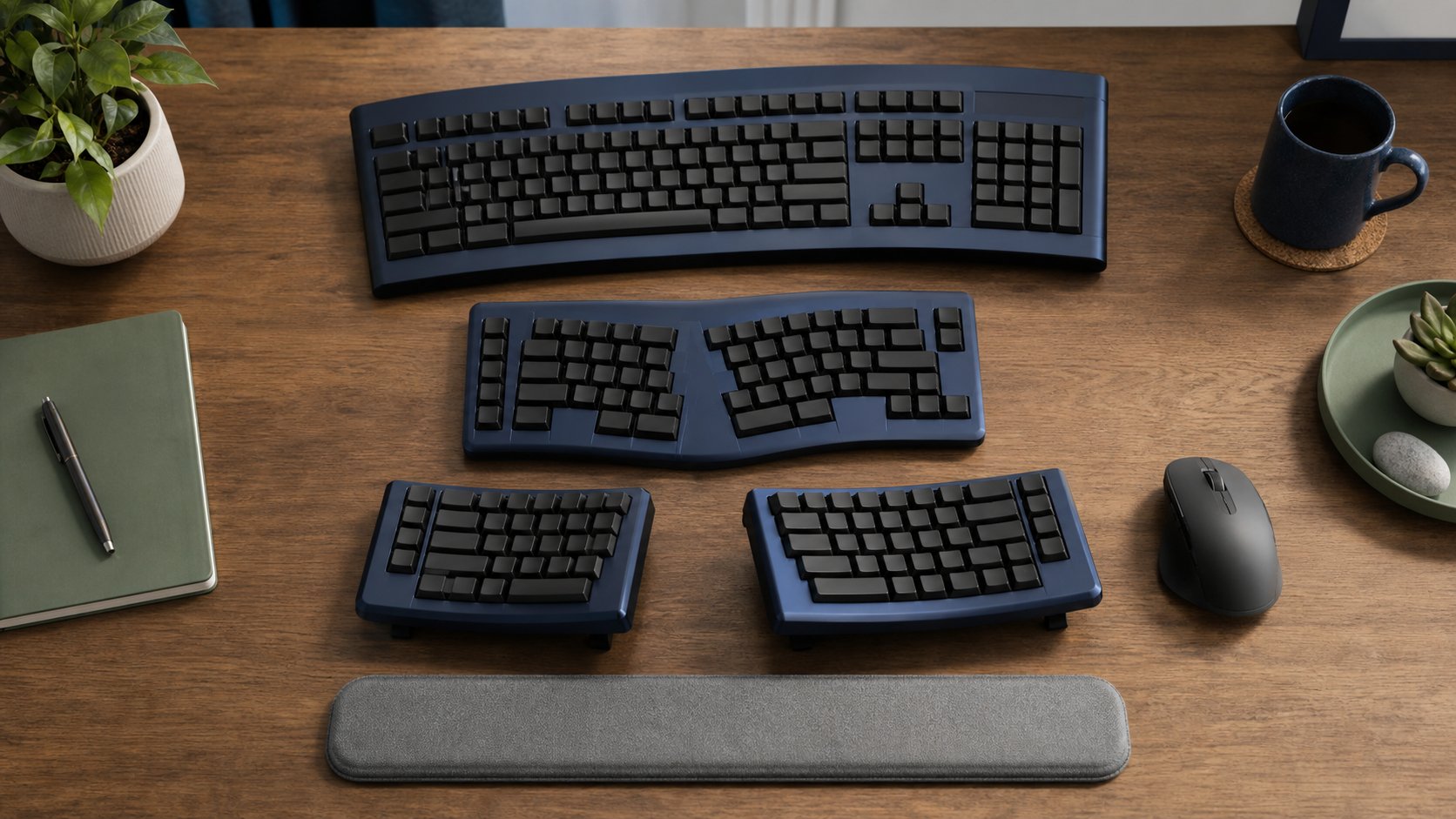
Ergonomic keyboards combine some or all of these changes.
Splay
Splay angles the left and right key groups so the wrists do not turn outward as sharply. A fixed one-piece board provides one compromise angle; separate halves allow more.
Separation
Separation lets the hands align closer to shoulder width. Too much can make the elbows flare or the mouse difficult to reach. Start near the familiar position and move outward gradually.
Tenting
Tenting raises the inner edges of the halves to reduce forearm rotation. More tenting is not always better. High angles can change wrist position and demand different support.
A contoured or columnar key arrangement adds a fourth change: finger movement and key location. That creates the largest learning cost.
Position the keyboard before adjusting the chair around it
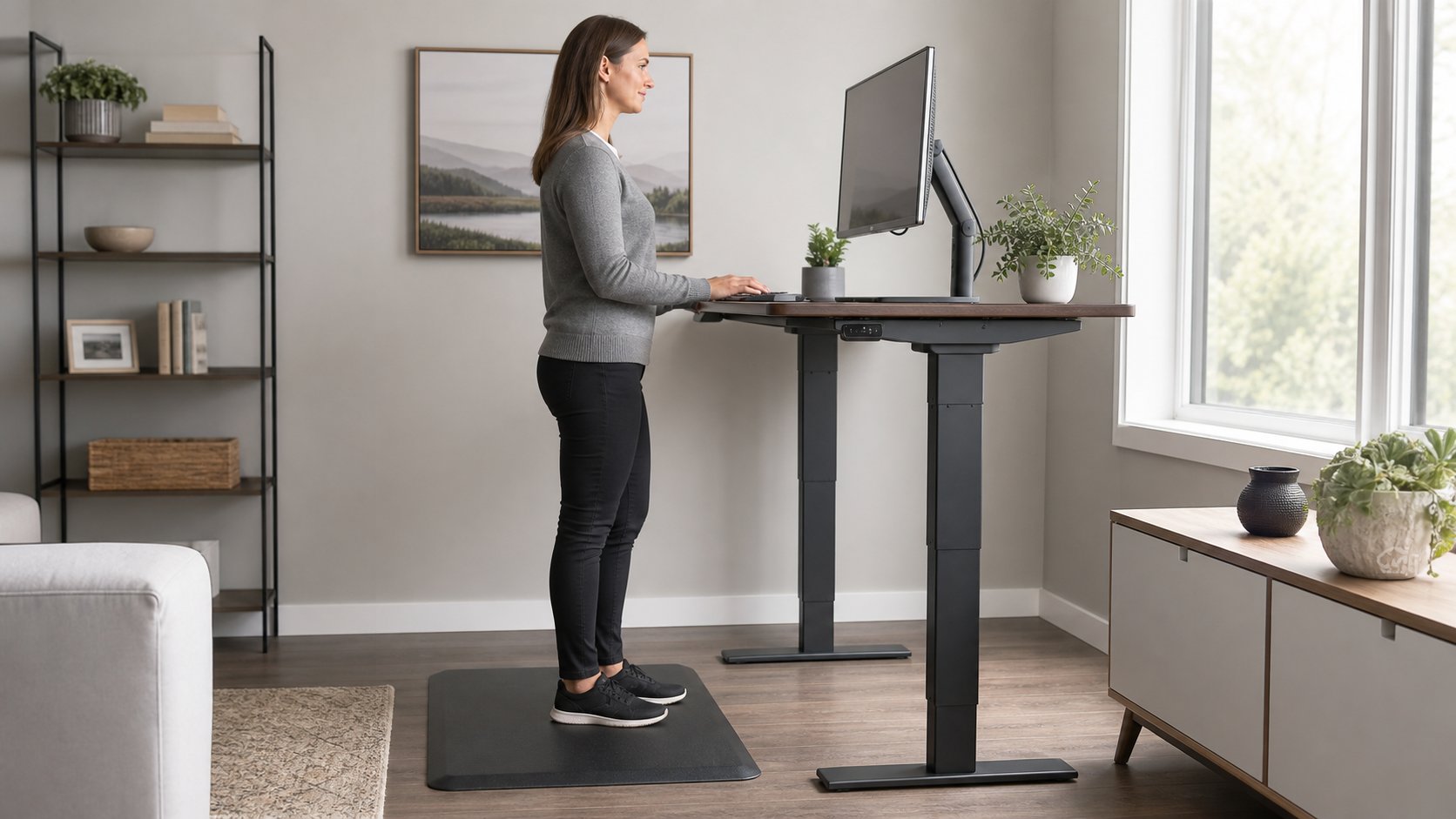
OSHA’s keyboard guidance emphasizes keeping the keyboard directly in front, elbows near the body and wrists in a neutral position.
Use this sequence:
- Set chair and feet support.
- Place the keyboard close enough that elbows remain near the torso.
- Center the letter keys—not the entire full-size case—with the body.
- Keep the front edge low enough to avoid wrist extension.
- Add modest splay or separation.
- Add tenting only after the first position is stable.
- Place the mouse close to the dominant hand.
A thick mechanical case on a high desktop may need a lower keyboard tray. A soft palm support is for light contact during pauses, not for planting the wrists while typing.
Choose the number pad deliberately
A permanent number pad is useful for frequent numeric entry but pushes a right-handed mouse outward. Options include:
- Compact full-size layout
- Tenkeyless keyboard
- Separate number pad used only when needed
- Number layer on a programmable keyboard
- Left-side number pad
Accountants and analysts may reasonably prioritize a physical number pad. Writers may gain more from a centered compact board.
Switch force and key travel
Light keys can reduce finger effort, but extremely light switches may increase accidental presses and tension. Heavy tactile or clicky switches can be tiring and disruptive on calls.
No switch color guarantees comfort across brands. If possible, test:
- Activation force
- Total travel
- Bottom-out feel
- Sound on a live microphone
- Stability under side pressure
- Keycap shape
A mechanical switch tester does not reproduce the posture or acoustics of a complete keyboard, but it can eliminate obviously unsuitable forces.
Follow a two-week transition
Do not move from a flat laptop keyboard to a highly tented columnar board during a deadline week.
Days 1–3
Use the new keyboard for 20- to 30-minute low-pressure tasks. Keep the previous board connected.
Days 4–7
Extend use to one focused work block. Correct repeated errors through practice rather than forcing speed.
Week 2
Use it for most work if symptoms are not increasing. Adjust only one variable—separation, tenting or chair height—at a time.
Download the input and seating fit checklist to record the settings that were actually tested.
Software and security checks
Programmable keyboards may require desktop software, browser-based configuration or firmware flashing. On an employer-managed computer:
- Confirm software is approved.
- Download only from the manufacturer.
- Back up a working key map.
- Do not interrupt firmware updates.
- Test essential shortcuts before removing the old keyboard.
- Confirm screen-reader and accessibility commands.
- Keep a basic wired keyboard available for recovery.
Wireless models should use supported pairing methods. Shared receivers are not interchangeable across every product generation.
When a different keyboard will not solve the problem
Pain can also come from desk height, mouse reach, sustained grip, workload or an underlying condition. First try the free changes in how to make a desk ergonomic and review wrist-pain typing fixes.
Stop and seek qualified clinical advice for persistent pain, numbness, weakness, night symptoms or loss of coordination. Do not type through worsening symptoms because a product is marketed as ergonomic.
Final recommendation
Choose ERGO K860 for a low-risk full-size transition, Wave Keys for a compact budget board, and Kensington KB675 EQ for a tenkeyless multi-device office. Choose Freestyle2 when shoulder-width separation matters without a new key layout, Keychron Q11 for programmable mechanical customization, and Advantage360 only when its contoured approach justifies the cost and retraining.
Start with modest change, keep the mouse close and evaluate the complete workstation. The best ergonomic keyboard is one you can type on accurately while remaining relaxed—not the design with the most extreme shape.