Eye Strain from Computer Screens: A Practical Relief Guide
Reduce digital eye strain by correcting glare, screen distance, text size, blinking and work patterns—and learn when computer-related symptoms need professional care.

What to know first
- Neutral, supported positions matter more than perfect posture.
- Movement throughout the day is part of the setup.
- Persistent pain deserves advice from a qualified clinician.
Computer eye strain—often called digital eye strain or computer vision syndrome—can include tired or dry-feeling eyes, blurred vision, headache and neck or shoulder discomfort during or after prolonged screen use. Glare, small text, poor viewing distance, incomplete blinking and uncorrected vision can all contribute.
Most setup changes are inexpensive: make text readable, control reflections, balance room and screen brightness, look into the distance and blink fully. Persistent, severe, painful or one-sided symptoms, sudden vision changes, double vision, flashes, new floaters or eye injury need prompt professional assessment.
This guide is educational and does not diagnose or treat an eye condition.
1. Increase text size before moving closer
If you lean toward the screen, enlarge the interface. Use operating-system scaling, browser zoom and application font controls.
The goal is readable text while the back remains supported and the head stays balanced. Moving a large monitor very close can increase eye and head movement; leaving small text far away encourages leaning.
Set scaling for the application you use most, not a test page. Spreadsheets, code editors and design tools may need different settings.
2. Set a comfortable viewing distance
Begin with a desktop screen roughly an arm’s length away. The American Optometric Association’s digital eye strain guidance describes a common monitor range around 20 to 28 inches and a downward viewing angle.
Your useful distance depends on screen size, text, vision and prescription. Use the farthest position where text remains comfortably readable without leaning or squinting.
Handheld devices are normally closer, so increase text and avoid bringing them extremely near the face for sustained reading.
3. Place the screen below straight-ahead gaze
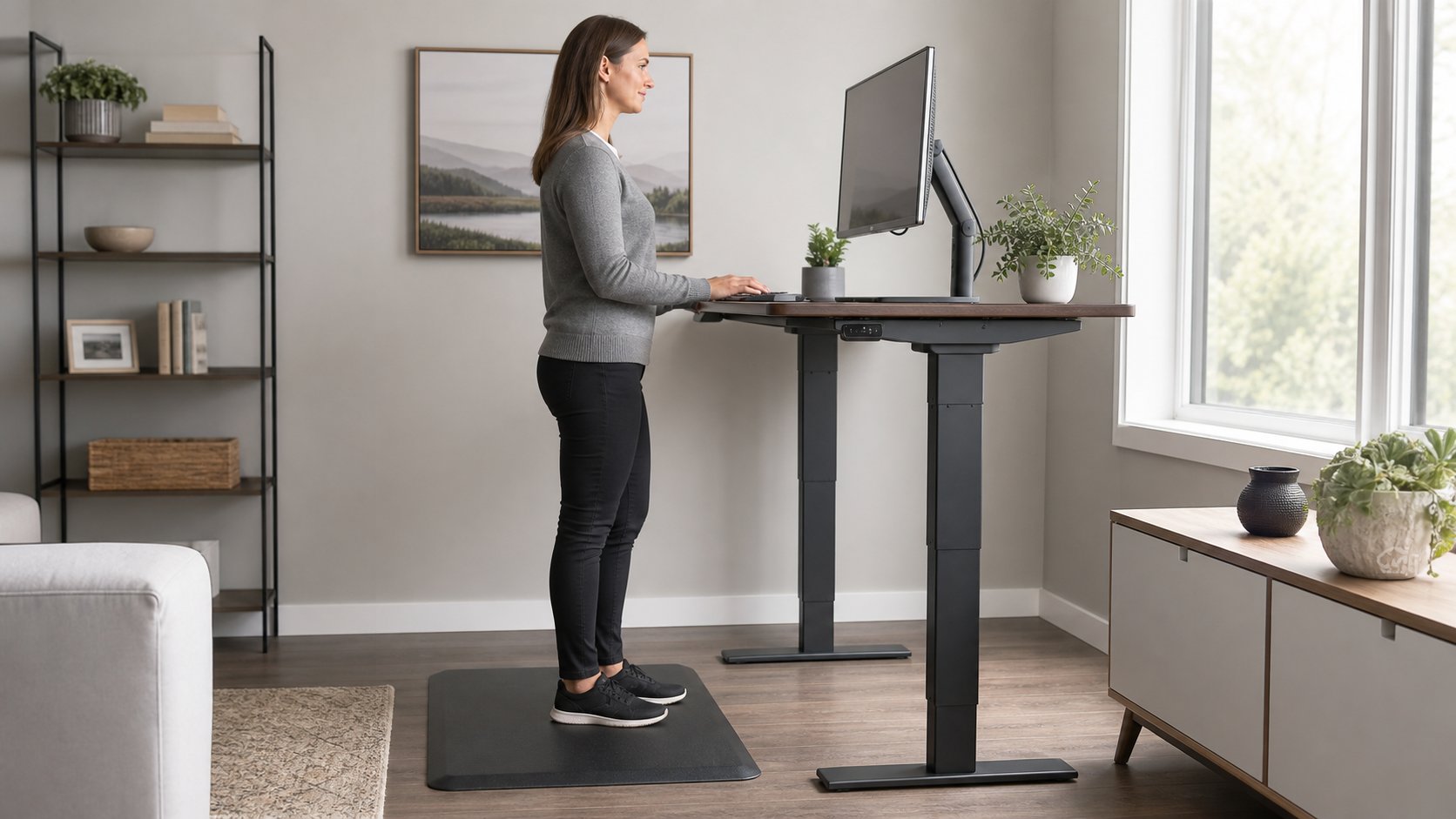
Set the upper active area at or slightly below eye level. The center of a typical monitor then sits below the straight-ahead line of sight.
People using progressive or bifocal lenses may need the screen lower to avoid tipping the head backward. Very large monitors also often sit lower and farther away.
The right height lets you scan the main work area with comfortable eye movement and modest head movement.
4. Remove reflections and glare
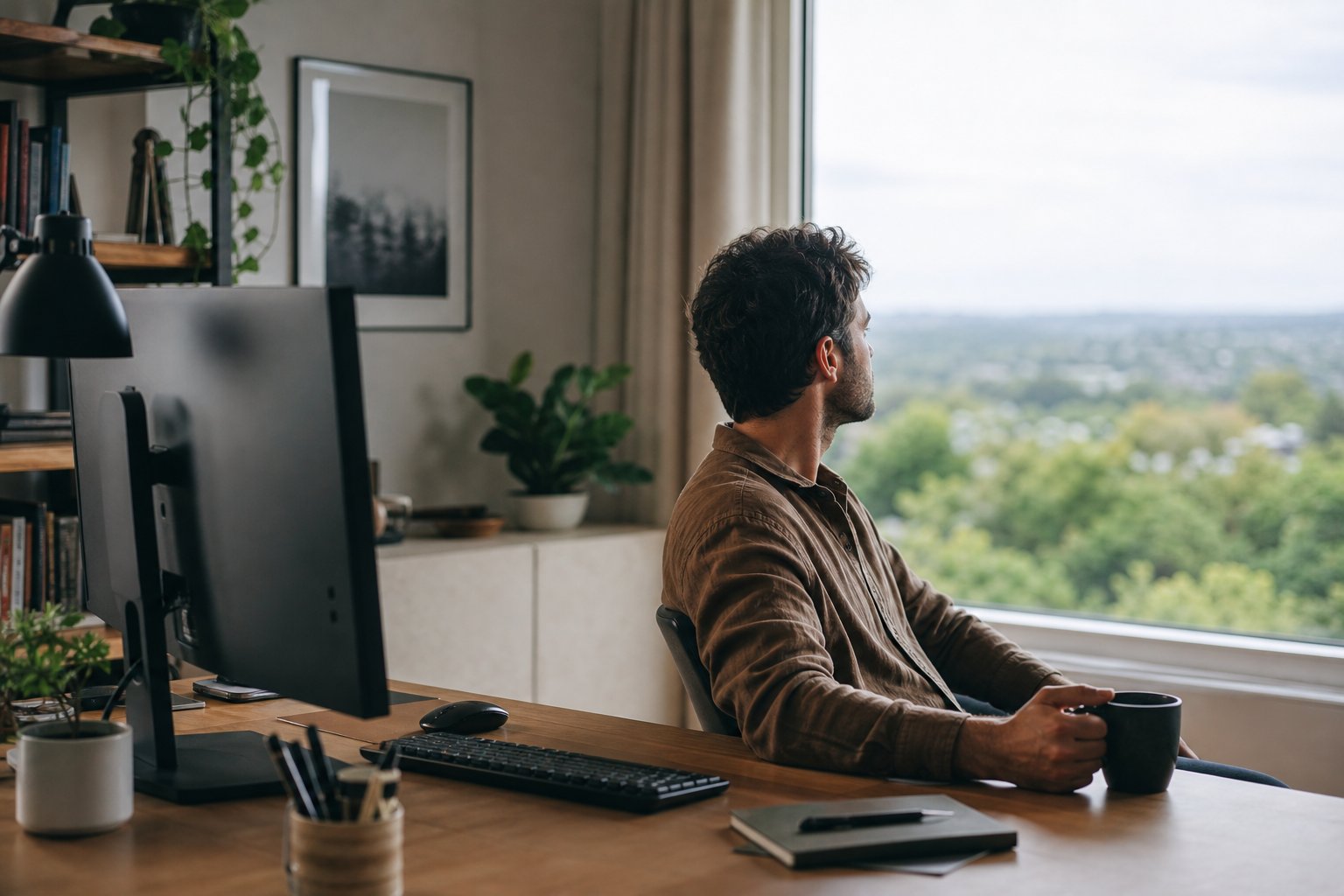
Turn the screen off and look at its dark surface. Bright windows, exposed bulbs and pale walls visible in the reflection can reduce contrast and make you change posture.
Try these fixes in order:
- Rotate the desk so the monitor sits perpendicular to the window.
- Use an adjustable blind or light-filtering curtain.
- Move exposed lamps outside the reflected angle.
- Tilt the display slightly while preserving a balanced head position.
- Clean the screen using manufacturer-approved methods.
- Consider a matte filter only after controlling the light source.
Do not work in complete darkness to eliminate glare. A bright screen in a dark room creates a different contrast problem.
5. Match room and screen brightness
A screen should not look like a lamp, and it should not be so dim that text loses clarity. Adjust it as daylight changes.
Many devices offer automatic brightness, but verify the result feels comfortable. Use a task lamp for paper so you do not need to raise the entire room’s brightness.
Dark mode may feel comfortable in a dim room; light text on a dark background can also appear to glow or blur for some people. Choose the mode that gives clear text in the current lighting, not the one marketed as universally healthier.
6. Use the 20-20-20 rule as a reminder
The common 20-20-20 rule is simple: about every 20 minutes, look at something around 20 feet away for 20 seconds. The AOA recommends it as one way to let the eyes refocus during digital work.
Treat it as a memory aid, not a precise dose. If a timer every 20 minutes disrupts complex work, attach distance viewing to natural cues:
- After sending a message
- When a page loads
- At the end of a paragraph
- Between agenda items
- When standing for water
Looking at a phone during the break does not change focal distance meaningfully.
7. Blink fully and manage dry air
Concentrated screen work can involve incomplete blinking. Occasionally close the eyes fully rather than squeezing them.
Keep direct fan, heating or air-conditioning flow away from the face. Consider room humidity where appropriate, but clean and operate humidifiers carefully to avoid microbial growth.
Do not choose medicated or redness-relief drops from an article. An optometrist, ophthalmologist or pharmacist can advise on suitable products and whether symptoms suggest another issue, particularly for contact-lens users.
8. Change activity before symptoms peak
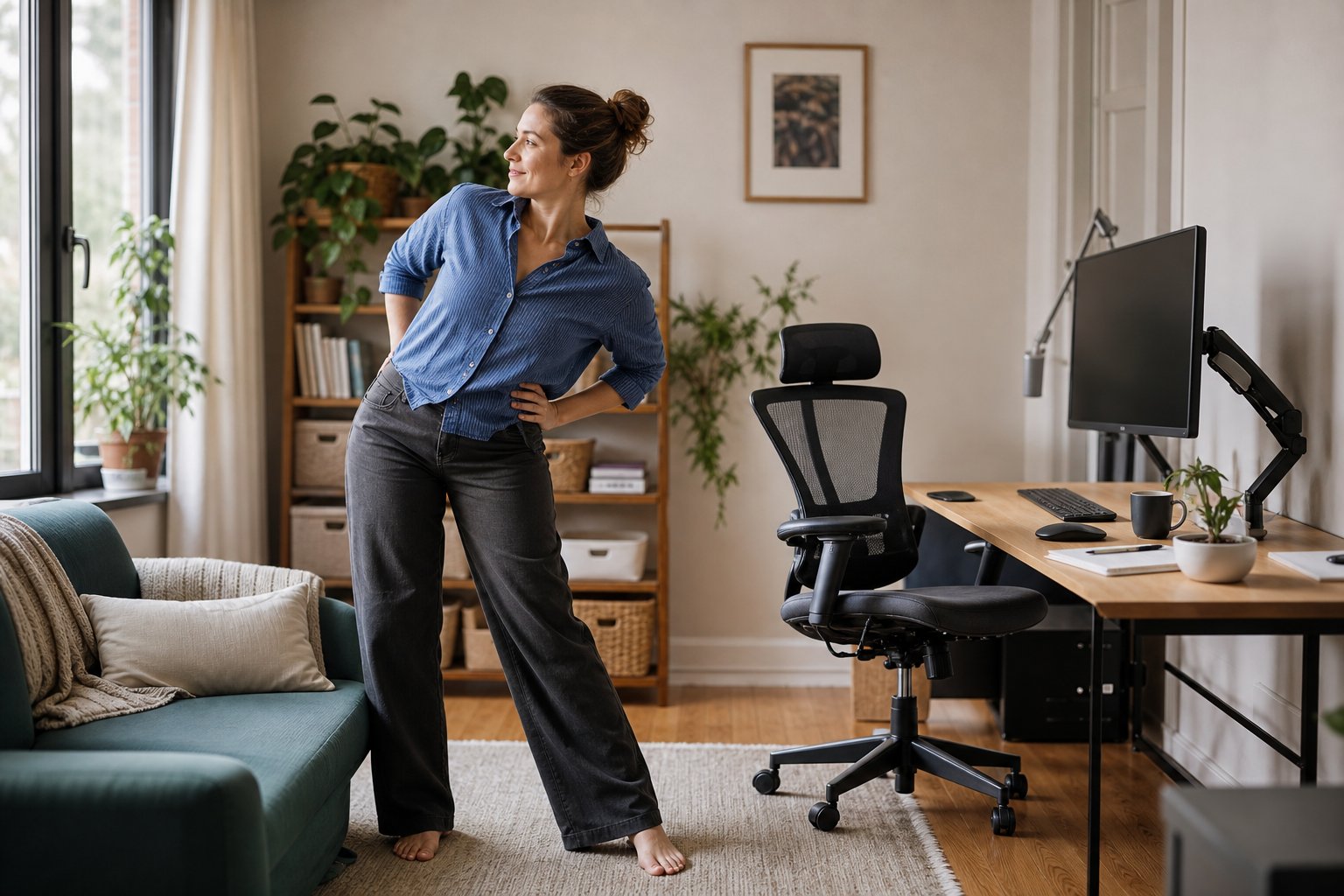
Alternate screen-intensive tasks with calls, paper review, planning or movement when the role allows it. Short changes before pronounced fatigue are easier to recover from than one long break after several continuous hours.
A useful break changes the demand. If the work involved close reading and mouse use, look farther away and move the hands and body.
9. Correct the room, not only the display
Eye and neck discomfort can share the same setup cause. Small text encourages leaning; glare encourages turning; a low laptop screen encourages neck flexion.
Check:
- Chair and back support
- Screen centered in front
- Keyboard and mouse close enough to avoid leaning
- Laptop raised with external input devices for long use
- Documents near the screen and similar in distance
- Task light aimed away from the display
A good screen position works with the whole workstation.
10. Keep vision correction current
A general prescription may not match sustained computer distance. Tell your eye-care professional how far you sit from the screen and how many hours you use it.
Do not assume every headache or blur is caused by the display. A comprehensive eye examination can identify uncorrected refractive error, focusing issues, dry eye and other conditions.
If employer or national policy provides display-screen eye examinations, use the appropriate process.
Do blue-light glasses prevent digital eye strain?
Digital eye strain has several contributors, including focusing demand, glare, lighting, viewing distance, blinking and uncorrected vision. Blue-light filtering does not correct those setup problems.
Some people prefer a warmer display at night. That preference is different from proving that non-prescription blue-light glasses treat symptoms or protect the eye from ordinary screen use.
Prioritize readable text, glare control, distance changes and professional eye care. If buying glasses, discuss lens needs with a qualified professional rather than relying on a generic coating claim.
Is dark mode better for your eyes?
Dark mode can reduce overall light output in a dim room and may feel comfortable. In bright rooms, dark text on a light background may provide sharper edge contrast for some readers.
Use the mode that keeps text clear without excessive screen brightness. Increase font size and weight when thin light text appears to bloom on a dark background.
Laptop, tablet and phone adjustments
Laptop
For sustained work, raise the laptop and add an external keyboard and mouse, or connect a larger monitor. Increase interface scaling rather than hunching toward a small high-resolution display.
Tablet
Use a stable stand that places the screen near a comfortable viewing angle. Avoid holding the device with one hand for long reading sessions.
Phone
Increase text size, hold it at a comfortable distance and take genuine distance breaks. Do not reduce room light to complete darkness while keeping the phone bright.
A ten-minute eye-strain audit
- Turn the monitor off and identify reflections.
- Reposition one light or close a blind.
- Sit back and increase text size until it remains readable.
- Set the screen near arm’s length and slightly below straight-ahead gaze.
- Match screen brightness to the room.
- Clean the display.
- Set a natural reminder to look outside or across the room.
- Record when symptoms occur and which tasks are involved.
Change the environment first, then evaluate through several normal workdays.
When to seek care
Arrange an eye examination when symptoms recur, glasses no longer seem adequate or visual comfort limits work. Seek urgent care according to local guidance for sudden vision loss, severe eye pain, new double vision, injury, chemical exposure, flashes with new floaters or a curtain-like shadow.
Headache and eye discomfort can have causes outside the workstation. Professional assessment matters when the pattern is new, persistent or concerning.
Improve the full visual setup
Pair these changes with the correct monitor height guide and the broader ergonomic home office assessment. The screen, chair, room light and work pattern should be adjusted as one system.
The practical takeaway
Make text large enough to read while sitting back. Place the screen at a comfortable distance with the main area below straight-ahead gaze. Control reflections, balance room brightness, blink fully and look into the distance throughout the day.
Computer eye strain is not solved by one accessory. It improves when the visual task, room, screen and your individual vision needs work together.