How to Reduce Neck Strain When Working from Home
Reduce neck strain while working from home with practical changes to monitor height, laptop use, chair support, phone habits, lighting, movement and workload.
What to know first
- Neutral, supported positions matter more than perfect posture.
- Movement throughout the day is part of the setup.
- Persistent pain deserves advice from a qualified clinician.
To reduce neck strain when working from home, center the main screen, make text readable without leaning, bring the keyboard and mouse closer, stop holding the phone between shoulder and ear, and change position regularly. The goal is not one perfect posture. It is less time spent in sustained, awkward positions.
This guide addresses common workstation contributors. It does not diagnose neck pain or replace medical care.
First, know when to get help
Arrange urgent medical assessment for neck pain after significant trauma, sudden severe headache, fever with marked neck stiffness, new weakness, difficulty walking, loss of bladder or bowel control, or other rapidly developing neurological symptoms.
Seek advice from a qualified health professional for persistent or worsening pain, numbness, tingling, weakness, pain radiating into an arm, repeated nighttime symptoms or symptoms that concern you.
Do not continue adjusting a workstation while a potentially serious symptom is progressing.
Ten practical changes
| Change | Main problem addressed |
|---|---|
| Center the primary screen | Repeated head turning |
| Set screen height | Sustained looking up or down |
| Increase text size | Leaning toward the display |
| Separate laptop keyboard | Low-screen compromise |
| Bring controls closer | Forward head and shoulder reach |
| Support chair and feet | Unstable sitting position |
| Change phone habits | Side bending and rotation |
| Control glare | Squinting and leaning |
| Take movement breaks | Long static exposure |
| Reduce workload pressure | Skipped breaks and prolonged sessions |
1. Center the primary screen
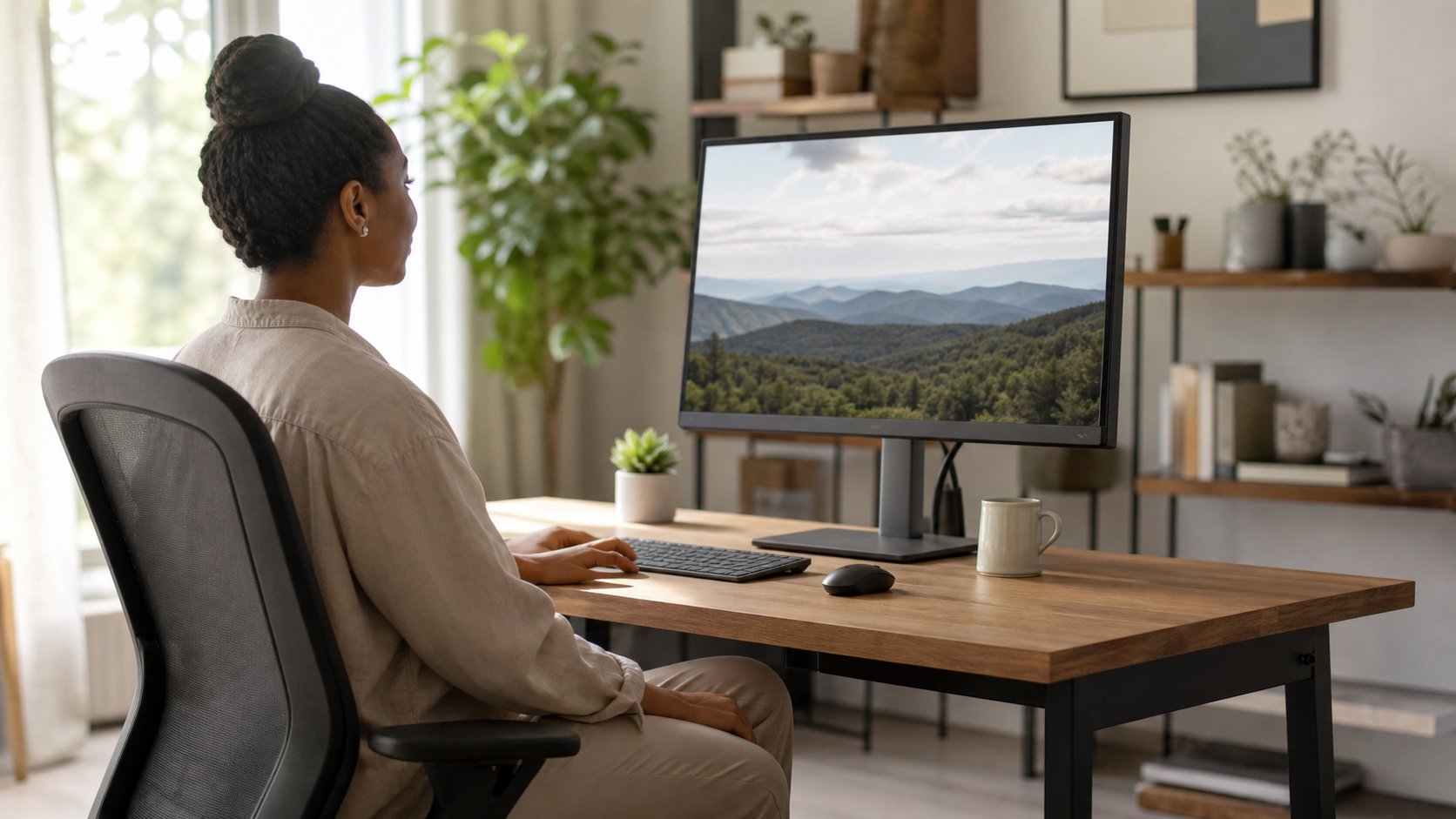
Put the display used most directly ahead. A side monitor is fine for reference, but active work should not require the head to remain turned.
For two equal screens, bring their inner edges together near the body’s center and angle both inward. For one primary screen, center it and place the secondary to one side.
The US Occupational Safety and Health Administration notes that prolonged head and neck turning loads muscles unevenly. Its monitor guidance recommends placing the monitor in front and considering distance, height, angle and clarity together.
2. Adjust screen height
Begin with the top of the usable display around eye level or slightly below. Most of the screen should sit below the straight-ahead line of sight.
Then adjust based on:
- Screen size
- Viewing distance
- Eyewear
- Text scale
- Recline angle
- Whether the task uses the top or bottom of the display
Progressive and bifocal lenses often require a lower screen to prevent tipping the head back. Comfort and a neutral head position matter more than a universal measurement.
Use the monitor-height guide for a step-by-step setup.
3. Increase text size
If you lean in to read, enlarge the content before moving the screen closer.
Adjust:
- Operating-system scaling
- Browser zoom
- Document zoom
- Interface font size
- Cursor size
- Contrast and brightness
An eye examination may be appropriate when text remains difficult to read, vision has changed or headaches recur.
4. Separate the laptop screen and keyboard
Long laptop sessions create a built-in compromise. Raising the display makes the keyboard too high; lowering the keyboard drops the screen.
Use a stable laptop stand with an external keyboard and mouse. Alternatively, keep the laptop low for input and connect a separate monitor.
Follow the complete ergonomic laptop workstation setup for home and travel options.
5. Bring the keyboard and mouse close
When input devices sit too far away, the head and shoulders often travel forward with the arms.
Keep the keyboard near the desk edge and the mouse immediately beside it. Move papers and decorative objects out of the primary reach area.
Relax the shoulders and keep elbows near the torso. Do not force them into an exact angle.
A compact keyboard can reduce side reach. It is useful only if the missing keys do not create extra work.
6. Support the chair and feet
A stable base makes screen posture easier.
- Sit far enough back to use the backrest.
- Keep feet supported by the floor or a stable footrest.
- Adjust chair height to the keyboard.
- Avoid a seat edge pressing firmly behind the knees.
- Keep the leg area clear enough to change position.
Do not sit rigidly upright all day. A supported slight recline can be comfortable, and movement among supported positions is valuable.
7. Stop cradling the phone
Holding a phone between the shoulder and ear combines side bending with raised-shoulder muscle effort.
Use a headset, earbuds, speakerphone in a private space or the computer’s approved calling application. Keep the screen in front when reading notes.
For long calls, vary position. An audio-only call may permit walking if safety, confidentiality and task demands allow it.
8. Control glare and lighting
Glare can lead to squinting, head tilting and leaning.
Turn the screen perpendicular to windows. Adjust blinds and move lamps out of the reflection path. Use even room light instead of working with a very bright display in darkness.
Clean the screen and glasses appropriately. Avoid increasing screen brightness to overpower direct sun.
The 20-20-20 guide covers visual breaks and other eye-strain controls.
9. Change position often
A well-arranged workstation still becomes uncomfortable when held too long.
Use short, frequent transitions:
- Stand after a meeting
- Walk to get water
- Read paper away from the screen
- Look across the room
- Roll the shoulders gently within a comfortable range
- Change from reclined to upright sitting
Movement should feel comfortable and controlled. Stop an exercise that causes pain, dizziness, numbness or radiating symptoms.
The UK Health and Safety Executive recommends changes of activity that let display-screen users move and change posture; see its work-routine guidance.
10. Address workload and meeting design
Workstation changes cannot compensate for a calendar that removes every break.
Consider:
- Shortening default meetings
- Leaving transition time
- Making some meetings audio-only
- Sharing written updates asynchronously
- Defining an urgent communication channel
- Protecting lunch away from the desk
- Rotating inconvenient global calls
If discomfort rises during meeting-heavy days, the work pattern is part of the exposure.
A five-minute workstation reset
- Sit back and support both feet.
- Bring keyboard and mouse close.
- Center the main screen.
- Enlarge text until it is clear from the supported position.
- Lower or raise the screen until you can view it without sustained head tilt.
- Remove the phone from shoulder-cradling use.
- Schedule a change of activity within the next hour.
Take a private side-view photo if helpful. Look for the ears drifting far ahead of shoulders, raised shoulders or a monitor that forces head tilt. The picture is a setup clue, not a medical assessment.
Common mistakes
Forcing the shoulders back
Rigidly pinning the shoulder blades together creates another sustained position. Aim for relaxed support and movement.
Buying a posture brace first
A brace does not correct screen placement, workload or vision and may not be appropriate. Seek professional advice before using a medical or corrective device.
Raising the monitor too high
“Eye level” does not mean the screen center must meet the eyes. A high display can cause head extension, especially with bifocals.
Stretching aggressively through pain
Gentle movement can be useful, but pain is not proof that a stretch is working.
Changing everything at once
Adjust one factor and observe ordinary work for a day.
Assuming pain proves poor posture
Symptoms have many possible contributors. A neat setup does not establish a diagnosis, and an imperfect posture does not explain every symptom.
What to track for one week
Keep a short log:
- Time symptoms begin
- Work task at the time
- Screen used
- Meeting duration
- Breaks or position changes
- Symptom location and character
- Adjustments tried
- What helped or worsened it
This can reveal patterns and provide useful context to a health professional. Do not use it to self-diagnose.
Final recommendation
Start with the primary screen and the input devices. Center the display, set a comfortable height, enlarge text, bring keyboard and mouse close and separate a laptop from its keyboard for long sessions. Support the feet and change position before discomfort becomes the reminder.
If neck symptoms persist, worsen or include neurological changes, seek qualified care. Ergonomics can reduce avoidable exposure, but health concerns deserve more than a monitor adjustment.