Gaming Desk Setup for Remote Work: One Desk, Two Modes
Turn one gaming desk into a professional remote-work setup with better ergonomics, fast device switching, restrained lighting and clear account boundaries.
What to know first
- Start with the work you do, not the look you want.
- Protect clearances before choosing furniture.
- Spend first on items you touch for hours each day.
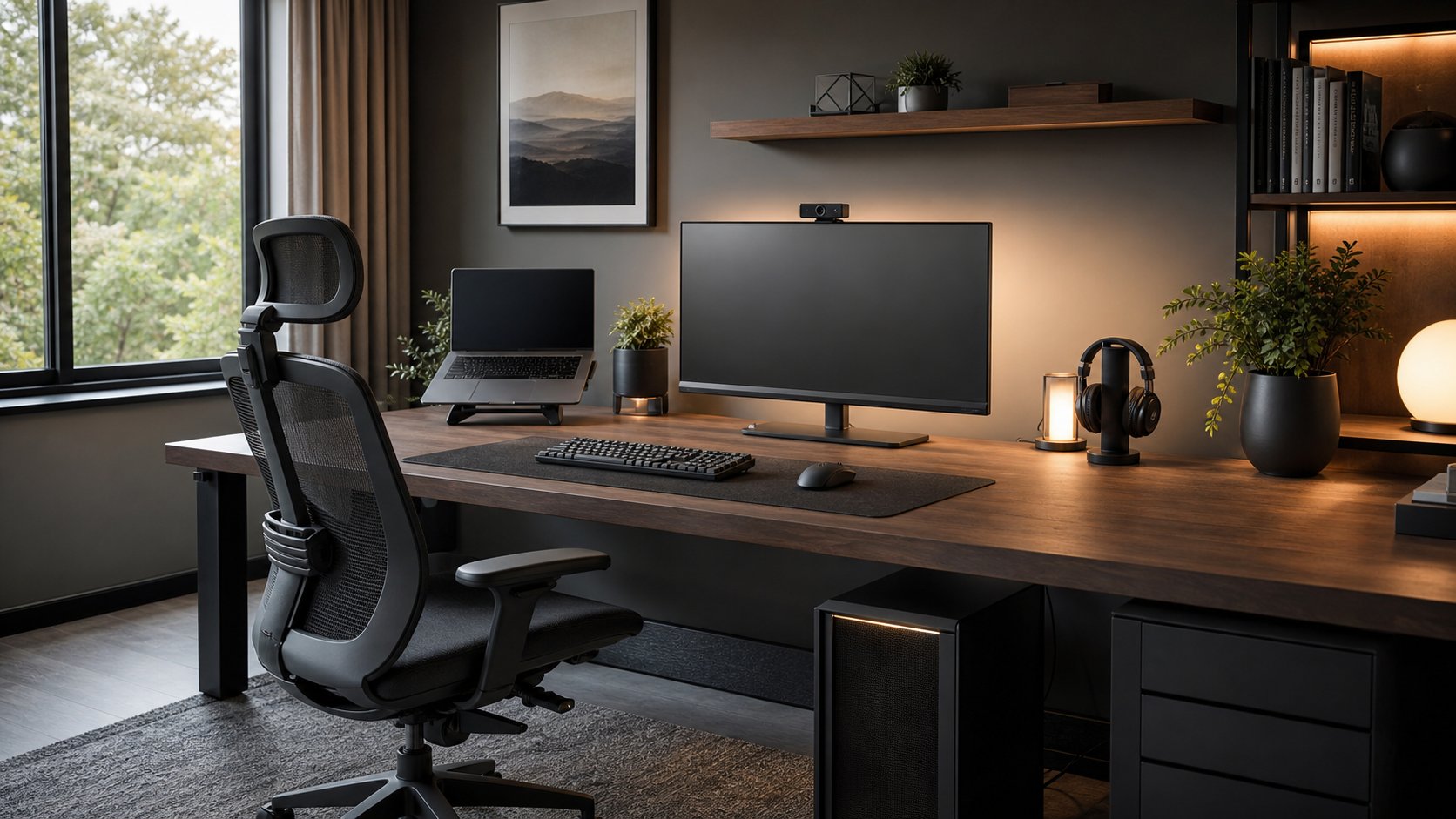
A gaming desk can double as a strong remote-work setup when it provides enough depth, a centered display, neutral input positions and a quick way to separate work from personal devices. Keep the desk hardware stable across both modes, then switch the computer input, lighting, audio and notification profile in a repeatable five-minute routine.
Do not assume a “gaming” label guarantees ergonomics. A shallow carbon-patterned top, fixed monitor shelf or oversized racing chair can make eight-hour work less comfortable than a plain office desk and adjustable task chair.
Build around the shared core
The components that should work in both modes are:
- Desk and chair
- Primary monitor
- Keyboard and mouse position
- Monitor arm or stand
- Task lighting
- Cable tray and power distribution
- Webcam mounting point
Change only what must differ: computer source, headset, lighting scene, accounts and visible work material.
Download the two-mode desk checklist to plan each transition.
Check desk depth before width
Gaming desks often advertise width, cup holders and accessory hooks while providing limited depth. OSHA’s desk guidance recommends enough depth to place the monitor at least 20 inches away and keep frequently used devices within easy reach.
Measure from the front edge to the monitor panel—not to the wall. Deep monitor feet, speaker stands and a desk shelf can leave too little room for forearm support.
A wider desk helps with two computers, but usable depth determines whether the screen and keyboard can coexist.
Center the work display
The main screen belongs directly in front during focused work. If two equal monitors are split across the centerline, the neck may stay rotated toward either one.
Use one of these arrangements:
One primary, one secondary
Center the most-used display. Put chat, monitoring or entertainment on the side screen.
Stacked displays
Useful when width is limited, but the upper display should support occasional viewing rather than hours of upward gaze.
One ultrawide
Reduces bezel and stand count. Window management becomes important for calls and screen sharing.
Console display plus work monitor
Keep both centered only if one is inactive and can move away. Two permanent focal points compete for the best position.
Review the multiple-monitor setup guide before choosing arms and orientation.
Use an office chair, not a visual theme
A supportive gaming chair can work, but bolsters, fixed armrests and a tall non-adjustable headrest may restrict movement. Evaluate the same criteria as any task chair:
- Seat height and depth fit
- Back support position
- Armrests that clear the desk
- Stable five-leg base
- Appropriate casters
- Useful recline
- Ability to change posture
OSHA’s chair guidance emphasizes back support, supported feet and a seat that fits without pressure behind the knees.
Choose fit over racing-seat styling. The ergonomic chair adjustment guide explains a practical setup sequence.
Switch computers without cable chaos
There are four common methods.
Monitor input switching
Connect the work computer and gaming computer to separate inputs. Change the display input manually. This is simple, but keyboard, mouse, webcam and audio still need a route.
USB switch
A button moves selected USB peripherals between two hosts. Verify USB generation, power behavior and compatibility with webcams, audio interfaces and security keys.
KVM switch
A keyboard-video-mouse switch moves displays and USB devices together. Match resolution, refresh rate, HDR, DisplayPort or HDMI version and USB bandwidth to both computers.
Separate peripherals
Two keyboards and mice remove switching uncertainty but consume space. Store the inactive set on a tray rather than pushing it into the primary reach zone.
Employer policy may prohibit connecting work hardware to personal switches, docks or monitors with integrated USB hubs. Ask IT before linking systems.
Protect work and personal accounts
A dual-purpose desk is not permission to mix identities.
- Use separate operating-system accounts or devices.
- Keep work files in approved storage.
- Do not install unapproved gaming software on company equipment.
- Disable personal cloud sync on the work account.
- Use the employer VPN only as directed.
- Cover or disconnect work cameras outside work when permitted.
- Sign out of chat and email at shutdown.
- Keep hardware security keys separated and labeled.
A KVM moves signals; it does not create a security boundary. Treat every connected peripheral according to company rules.
Choose a keyboard and mouse strategy
A mechanical gaming keyboard may be pleasant but loud on calls. A lightweight high-polling mouse may not provide the shape needed for long document work.
Options include:
- One neutral keyboard and mouse for both modes
- A quiet work set stored beside gaming peripherals
- Multi-device peripherals with dedicated switching buttons
- A keyboard optimized for typing plus separate game controller
Keep the mouse beside the keyboard at the same height. Do not let a full-size keyboard push the pointer far to the side if the number pad is rarely used.
Compare practical sets in the keyboard and mouse combo guide.
Make lighting professional in one step
Keep three saved scenes:
- Work: neutral ambient light, task light and restrained background light
- Call: neutral face light with no saturated color on skin
- Gaming: optional dim accent color after work
The work scene should be usable without an app. Bright RGB strips in direct view add glare and make camera color inconsistent.
Use the LED desk lighting guide to position ambient, task and background layers safely.
Plan audio for calls and games
A gaming headset can handle meetings if its microphone sounds clear, sidetone is comfortable and software is approved. Test:
- Voice quality in the actual meeting app
- Background keyboard pickup
- Mute control state
- Bluetooth call-mode quality
- Comfort after one hour
- Whether speakers leak into the microphone
A USB microphone may sound better but occupies desk space and can block monitor movement. Place it close enough for normal speech without forcing a leaned posture.
Keep high-refresh performance intact
A KVM, dock or adapter can become the display bottleneck. Verify the complete chain:
- Source port
- Cable version and length
- Switch or dock bandwidth
- Monitor input
- Intended resolution
- Refresh rate
- HDR and adaptive-sync support
Use certified cables and test both work and gaming modes before the return window closes. A product that advertises “4K” may support it only at a lower refresh rate.
Control cables and heat
A high-power gaming computer, work laptop, displays, lighting and audio can overload a messy setup.
- Keep PC intakes and exhausts clear.
- Do not place a tower on thick carpet without an appropriate stand.
- Use a listed surge protector sized for the equipment.
- Avoid daisy-chaining power strips.
- Keep power adapters ventilated.
- Leave service loops for a standing desk.
- Separate frequently unplugged work cables from permanent gaming wiring.
A UPS can protect selected equipment and allow orderly shutdown. Read the home-office UPS guide before sizing one.
Create a five-minute mode change
End work
- Save and close approved work systems.
- Remove confidential paper.
- Sign out or lock the company device.
- Switch monitor and USB inputs.
- Change the lighting scene.
- Put the work laptop on a ventilated dock or shelf.
- Physically reset the desk.
Start work
Reverse the sequence, then check the camera frame and microphone before the first call.
A short physical transition replaces the missing commute and makes account mistakes less likely.
Reduce visual clutter
Gaming equipment can look professional when every visible item has a home.
- Mount controllers on a side shelf.
- Put handheld devices in a ventilated drawer or dock.
- Use one neutral desk mat.
- Hide empty packaging and collectibles outside the call frame.
- Keep only current work notes on the return.
- Use lighting color sparingly.
Professional does not mean colorless. It means the desk does not compete with your face, screen or conversation.
Common mistakes
Buying a shallow desk for its width. Monitor distance fails first.
Using two computers on one central input zone without a switch plan. Cables and accounts become confused.
Assuming every KVM supports gaming refresh rates. Verify the complete signal path.
Leaving RGB at maximum during calls. Use a neutral scene.
Connecting employer hardware without approval. USB devices can create security risk.
Using one posture for work and play. Change position and take breaks during both.
Letting the desk become storage. Keep the main reach zone clear.
Final recommendation
Use a deep, stable desk and adjustable office chair as the shared foundation. Center one primary display, choose an approved switching method and save separate work, call and gaming lighting profiles.
The best dual-purpose setup changes mode quickly without mixing accounts or moving the body into a compromised position. If the transition takes more than five minutes, simplify the peripherals before buying more equipment.