Programmer Desk Setup: A Practical Developer Workstation
Build a programmer desk setup around readable code, reliable connections, neutral input positions and fewer distractions—not oversized displays or decorative gear.
What to know first
- Start with the work you do, not the look you want.
- Protect clearances before choosing furniture.
- Spend first on items you touch for hours each day.
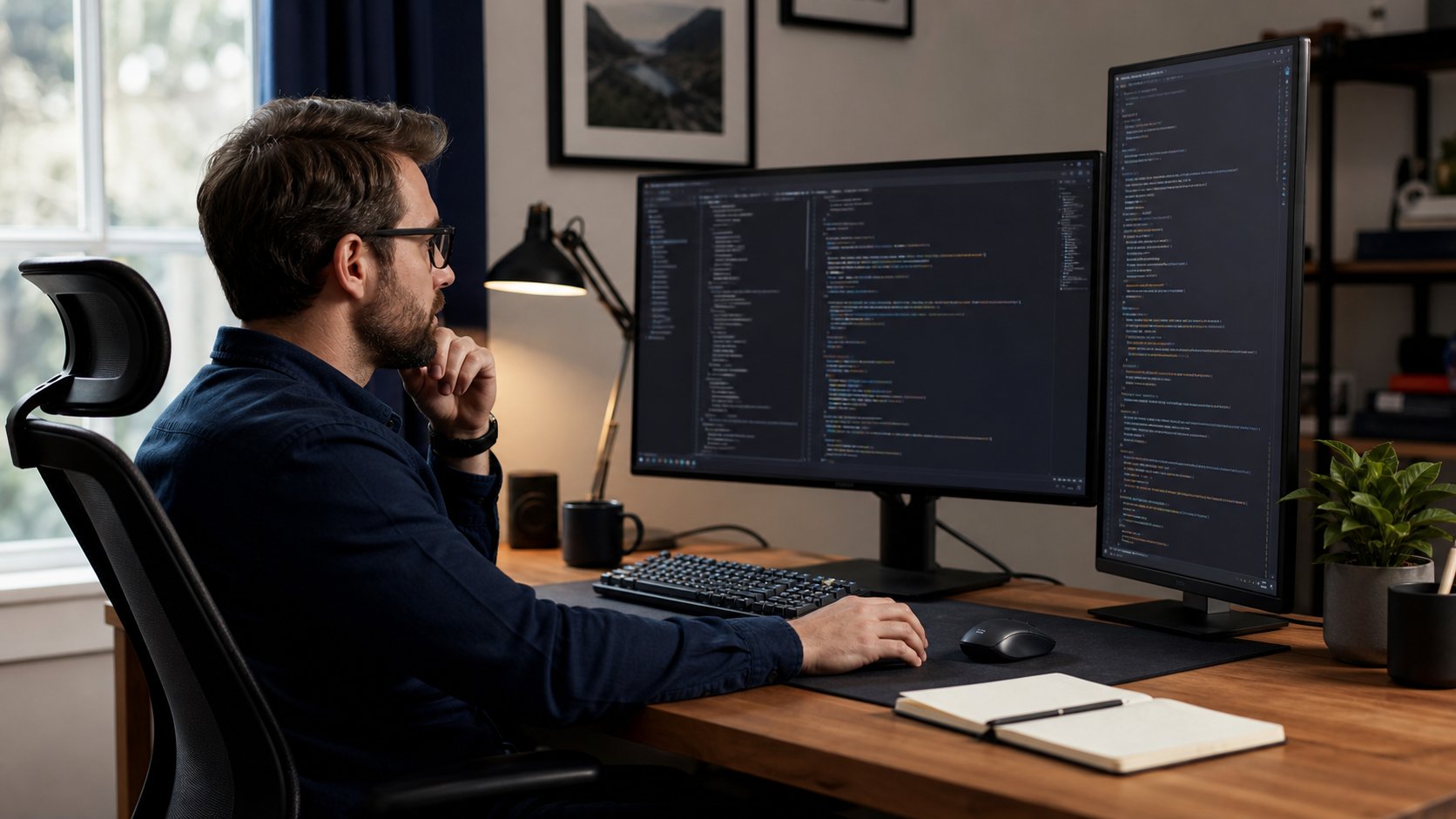
A useful programmer desk setup keeps the active editor centered, text readable, input devices close and build or network failures recoverable. Start with the computer required by the work, one good screen, a keyboard and pointer that fit, reliable connectivity and a chair-desk combination that supports position changes.
A wall of monitors and glowing accessories can look technical without improving development. Add equipment only when a repeated workflow shows why it belongs.
The practical setup
| Component | Baseline recommendation |
|---|---|
| Computer | Employer-approved system with enough RAM, storage and ports for the stack |
| Main display | Centered, readable at comfortable distance |
| Secondary display | Optional; assigned to reference, preview or monitoring |
| Keyboard | Layout that supports required shortcuts without excess reach |
| Pointer | Close to keyboard and suitable for precise navigation |
| Desk | Stable and deep enough for screen distance |
| Chair | Adjustable enough to fit the key surface |
| Network | Ethernet where practical; tested Wi-Fi backup plan |
| Power | Certified surge protection and appropriate UPS if outages matter |
| Audio | Clear microphone and comfortable listening at safe volume |
The best workstation is the one that disappears while you solve the problem.
Start with workload, not aesthetics
List the work the system must handle:
- Local containers or virtual machines
- Mobile emulators
- Large repositories
- Compilers and build tools
- Data analysis
- GPU development
- Remote desktops
- Video calls
- Multiple corporate security agents
- Local databases
Then identify bottlenecks from measurements. A slow build caused by memory pressure needs RAM, not another monitor. Poor remote-desktop latency needs network diagnosis, not a faster local GPU.
Employer hardware, security and procurement rules take priority over personal preferences.
Choose the computer
Laptop
Best for hybrid work, travel and employer standardization.
Check:
- Required processor architecture
- Memory ceiling
- Sustained performance under builds
- External display count
- Port and dock compatibility
- Battery serviceability
- Webcam and microphone policy
- Operating-system support window
A thin laptop can be powerful, but fan noise and performance under a long compile may differ from short benchmarks.
Desktop
Best for upgradeability, many ports and sustained high-load work.
Trade-offs include no built-in battery, less mobility and the need for separate video-call hardware.
Remote workstation or cloud environment
Useful when data, GPUs or standardized build environments stay elsewhere. The local machine still needs a clear display, reliable network, secure authentication and enough capability for communication during an outage.
Do not copy company code or credentials to personal equipment to work around a slow connection.
Memory and storage
Track actual usage during a representative build, container load and meeting.
More memory is justified when the system swaps heavily or kills processes under the normal toolchain. Storage needs should include:
- Operating system
- Repositories
- Package caches
- Container images
- Virtual machines
- Build artifacts
- Local databases
- Encrypted backups where authorized
- Free working space
Do not fill an SSD to its last few gigabytes. Cleanup policy and repository hygiene often recover more space than a small upgrade.
One monitor or two?
One centered monitor reduces head turning and desk complexity. Use virtual desktops, editor splits and task switching before adding a display.
A second monitor is useful for persistent content:
- Documentation
- Application preview
- Logs
- Test runner
- Database console
- Video call
- Accessibility tools
Keep the editor or primary remote desktop centered. Angle the reference display inward.
For three or four screens, use the multiple-monitor setup guide to verify graphics support, bandwidth and mount load.
Landscape vs portrait
A portrait display can show long files or documentation, but extra vertical height may cause upward viewing.
Use it for content that benefits from length and place high-use lines near the natural viewing zone. Do not assume seeing 100 lines is better than readable font size.
A large landscape monitor with two editor columns can be easier to scan than a narrow portrait panel.
Set text for reading
Increase editor font size until code is clear from a supported posture. Then adjust:
- Line height
- Contrast
- UI scaling
- Terminal font
- Tab and indentation guides
- Syntax colors
- Cursor visibility
A dark theme is not automatically easier on the eyes. Match display brightness to the room and choose a theme with usable contrast.
Use the digital eye-strain guide for glare, blinking and visual breaks.
Keyboard choice
The best keyboard supports required symbols and shortcuts without forcing the mouse outward.
Compare:
- Layout and key availability
- Operating-system mapping
- Key feel and force
- Noise in shared rooms
- Height at the front edge
- Programmability allowed by IT
- Wired, wireless or multi-device operation
- Cleaning and repair
A compact board can bring the pointer closer, but removing navigation keys may increase layer use. Read the mechanical keyboard guide before choosing switches.
Pointer choice
A mouse, trackball, pen or central pointing device can all work when positioned close and used comfortably.
Developers who alternate heavily between keyboard and pointer can reduce travel with:
- Editor shortcuts
- Command palette
- Compact keyboard
- Higher pointer sensitivity within controllable limits
- A device that fits the hand
Shortcuts should improve flow, not become a memorization contest.
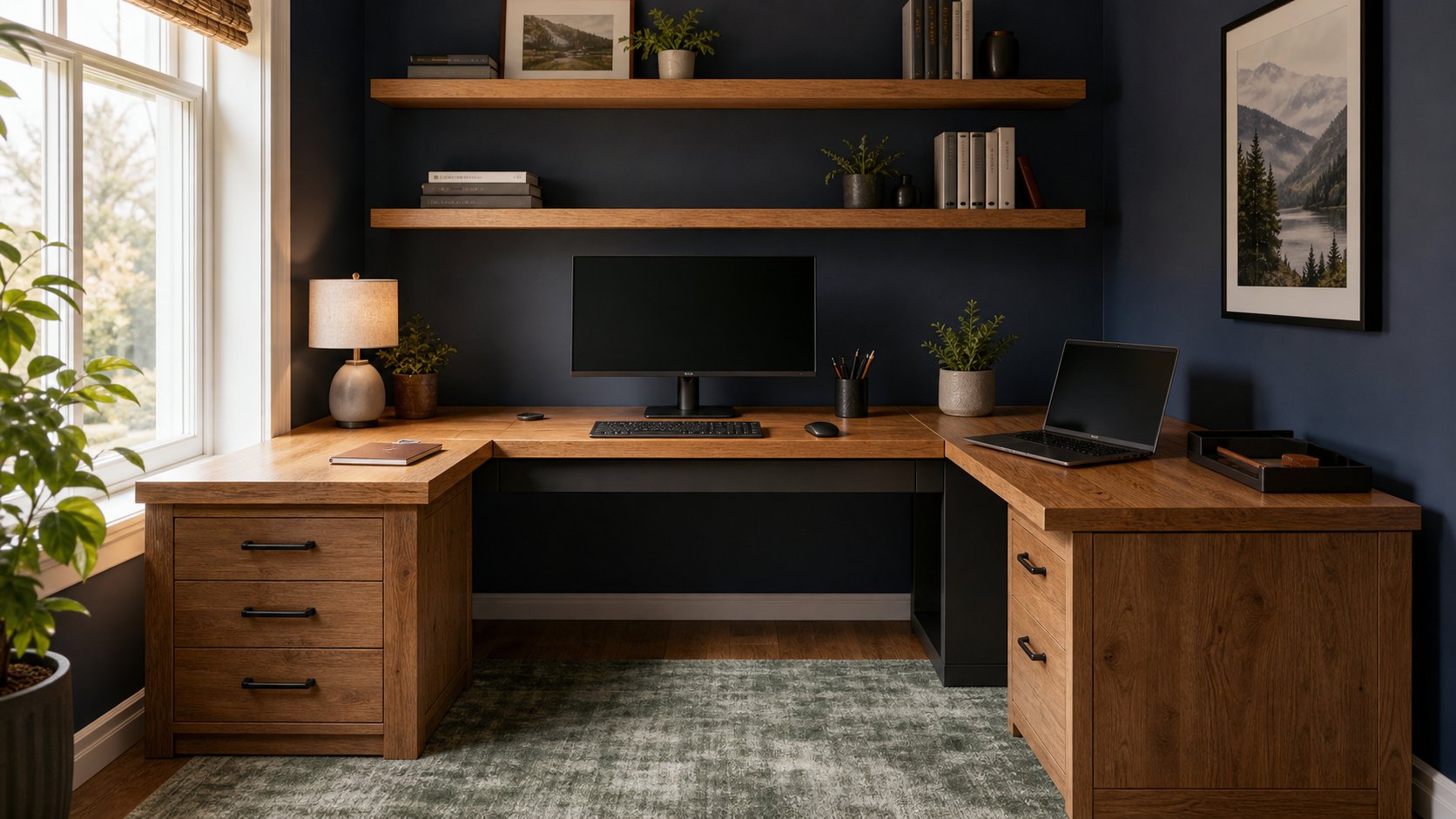
Desk dimensions
The desk must hold equipment at comfortable distance and remain stable under typing.
Measure:
- Screen width and stand depth
- Laptop or dock footprint
- Speaker or microphone position
- Keyboard and mouse area
- Notebook space
- Monitor-arm clamp zone
- Computer ventilation
- Cable paths
A 60–80 cm depth works for many conventional screens, but monitor size, stand and eyesight change the requirement.
Use the keyboard-tray guide when a fixed desk keeps the keys too high.
Chair and movement
Set chair height from the keyboard, support feet and use the backrest. Armrests should not raise the shoulders or block access to the desk.
No chair makes twelve uninterrupted hours appropriate. Change position, stand for brief tasks where comfortable and leave the screen between focus blocks.
Persistent pain, numbness, weakness or tingling deserves qualified assessment.
Laptop docking
A one-cable setup is convenient only when power, display count and peripherals are compatible.
Check:
- Host USB-C, USB4 or Thunderbolt capability
- Charging wattage
- Native display limits
- Ethernet speed
- USB bandwidth
- Operating-system and driver support
- Company approval
The docking-station guide explains DisplayLink, MST and power delivery.
Network reliability
Wire the primary workstation with Ethernet when practical. For Wi-Fi:
- Test latency and packet loss at the desk.
- Keep the router in an open location.
- Separate provider outages from local Wi-Fi issues.
- Know how the corporate VPN changes performance.
- Keep an approved fallback connection if the role requires it.
Do not expose local development servers to a public network without understanding binding, firewall and authentication settings.
Power and outage planning
A laptop provides temporary battery backup. Desktops, routers and external storage may need an appropriately sized UPS.
Connect only approved loads and test safe shutdown. A UPS is not a reason to continue through a prolonged electrical hazard.
Use the UPS guide to estimate watts and runtime, and the offline-work plan for service outages.
Audio and calls
A clear microphone close to the mouth usually improves calls more than a premium camera. Choose a headset, earbuds or external microphone based on room noise, comfort and meeting frequency.
Keep playback volume low enough for safe long-term use. Mute hardware or software visibly when discussing sensitive work nearby.
Cable management for developers
Group cables by function:
- Power
- Display
- Network
- USB peripherals
- Temporary device testing
Provide one accessible test cable rather than pulling permanent routing apart. Label both ends of unusual adapters.
Keep hubs and development boards where status lights and heat can be monitored. Do not bury power adapters under papers.
Security belongs in the setup
Physical layout affects security.
- Lock the screen when leaving.
- Position confidential displays away from windows and household traffic.
- Store security keys deliberately.
- Keep recovery codes in an approved location.
- Use employer-managed password and endpoint tools.
- Separate personal and work accounts.
- Avoid unknown USB accessories.
- Follow policy for microphones, cameras and smart devices.
A beautiful workstation is not useful if it creates a data-handling problem.
Create work modes
Coding mode
Editor centered, communication muted according to team expectations, required documentation open.
Review mode
Diff and issue context visible, with a notebook or comment window ready.
Meeting mode
Camera framed, microphone selected, private material closed and notifications controlled.
Shutdown mode
Changes pushed or saved appropriately, sensitive sessions closed, tasks captured and desk reset.
Use the deep-work system for scheduling focused blocks without becoming unreachable.
Common setup mistakes
Buying the maximum number of monitors. More screens can create more monitoring.
Using tiny text to fit more code. Readability beats line count.
Choosing a loud keyboard for a shared room. Sound is part of compatibility.
Running every service locally. Match the environment to policy and workload.
Ignoring sustained load. A short benchmark does not represent a long build.
Placing the laptop under papers. Ventilation and access matter.
Treating cable management as permanent. Developers need a flexible test path.
Working around security controls. Escalate tooling problems through approved channels.
Upgrade order
- Fix unreadable text and screen placement.
- Stabilize chair, feet, keyboard and pointer.
- Resolve network failures.
- Add memory or storage for measured bottlenecks.
- Add a second screen for a named role.
- Improve docking and cable transitions.
- Add backup power where outage risk justifies it.
- Decorate after the workflow is reliable.
Final recommendation
Build a programmer desk around the actual stack. Center the editor, make text readable, keep the keyboard and pointer close, confirm dock and display limits and design for network or power interruption.
Start with one strong working surface and one good monitor. Add hardware only after logs, measurements or repeated friction show what the next upgrade must solve.